Allocated Leave Edit
Leave allocation must create a period of leave. Be able to record the date and time of employees’ leave. By creating a period of leave, the steps are as follows.
Remark : This is the menu used to view information. It is not recommended to edit data. To edit use the menu <Leave Detail Edit> It will be in the next menu.
1.Click <Allocated Leave Edit>from the main menu or double click from the left menu. <Leave> double click menu. <Allocated Leave Edit>
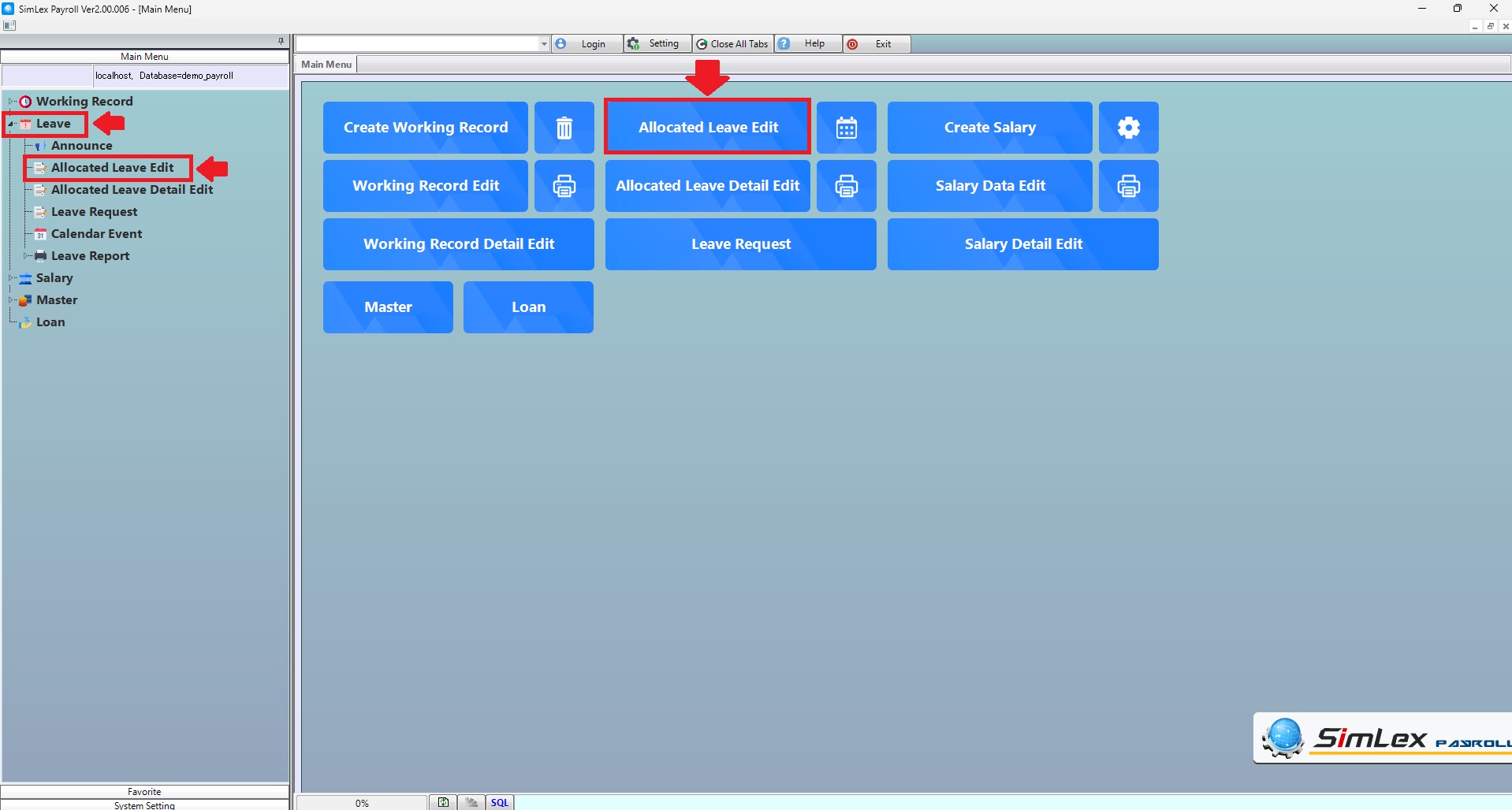
Picture 1 Click menu allocated leave edit.
2. The system will display information. Then click <Create Leave Period>
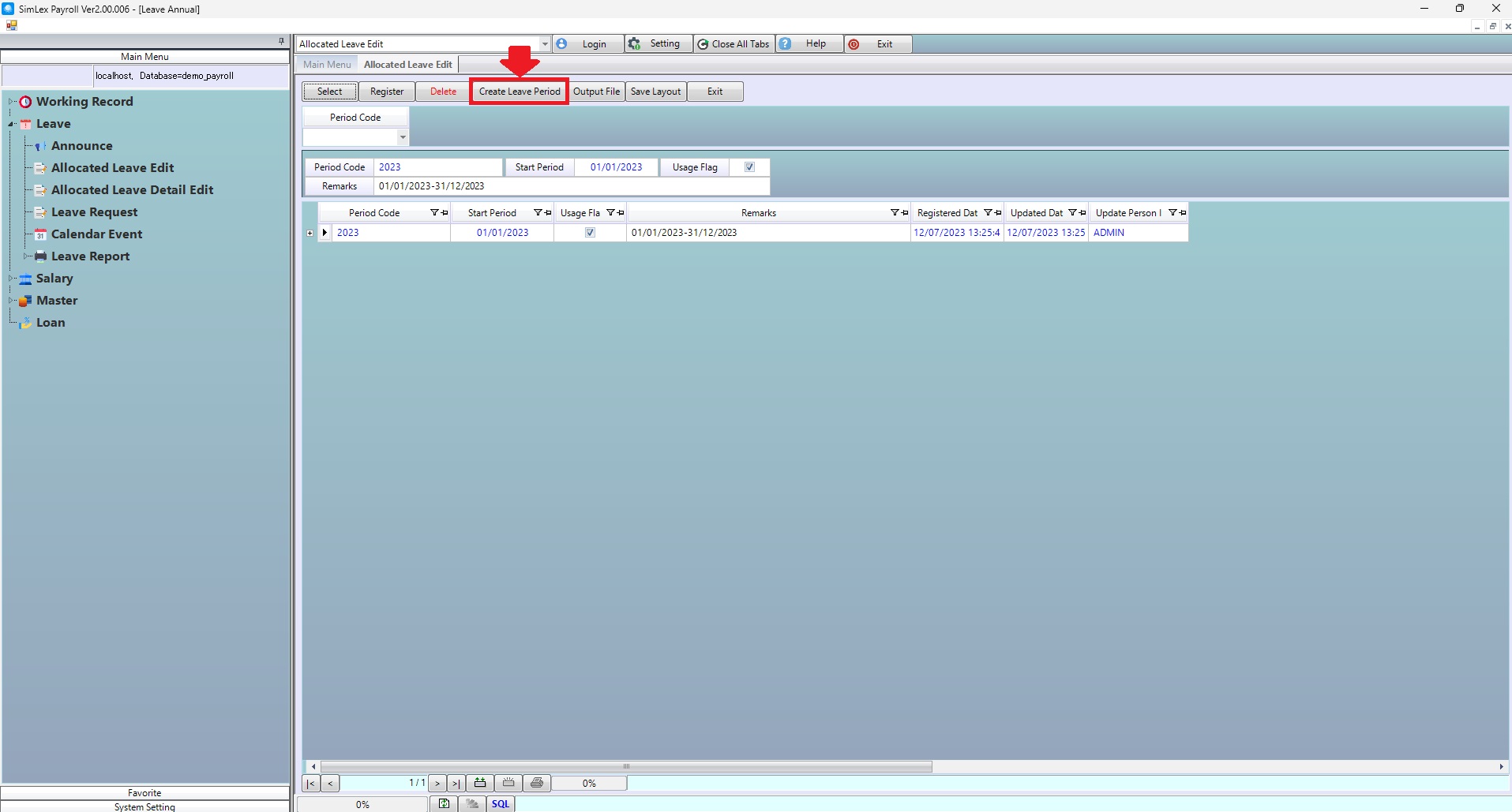
Picture 2 The system display information.
Fill in the information. Click <Execute>
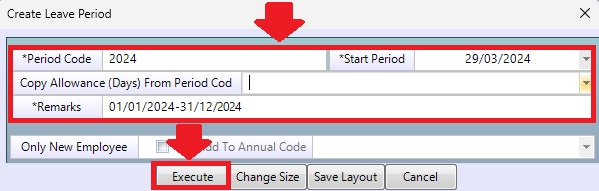
Picture 3 Create Leave Period
If there is a new employee during the leave period. Check checkbox <Only New Employee> Click the time period code you created. <Add to annual code> and then click <Execute>
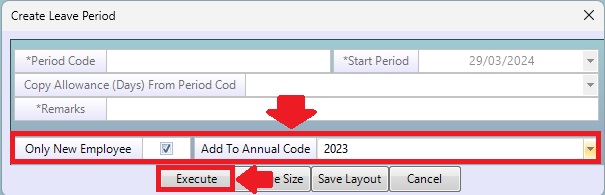
Picture 4 Create leave periods for new employees.
| Field name main menu | Search for details of information |
| Period Code | Select Period Code |
| Field name input data | Information input detail |
| Period Code | Set Period Code. |
| Start Period | Select the start date of the leave period. |
| Copy Allowance (Days) From Period Code | Select to copy from period code that was used. |
| Remark | Enter remark. |
| Only New Employee | Check Checkbox, if there is a new employee during the leave period. |
| Add To Annual Code | Select annual code that was created. |