Working Record Detail Edit
To edit the time in-out and attendance details of employees in the company Can be created with the following steps.
1. Click<Working Record Detail Edit>from the main menu or double-click from the left menu. <Working Record>double-click menu <Working Record Detail Edit>.
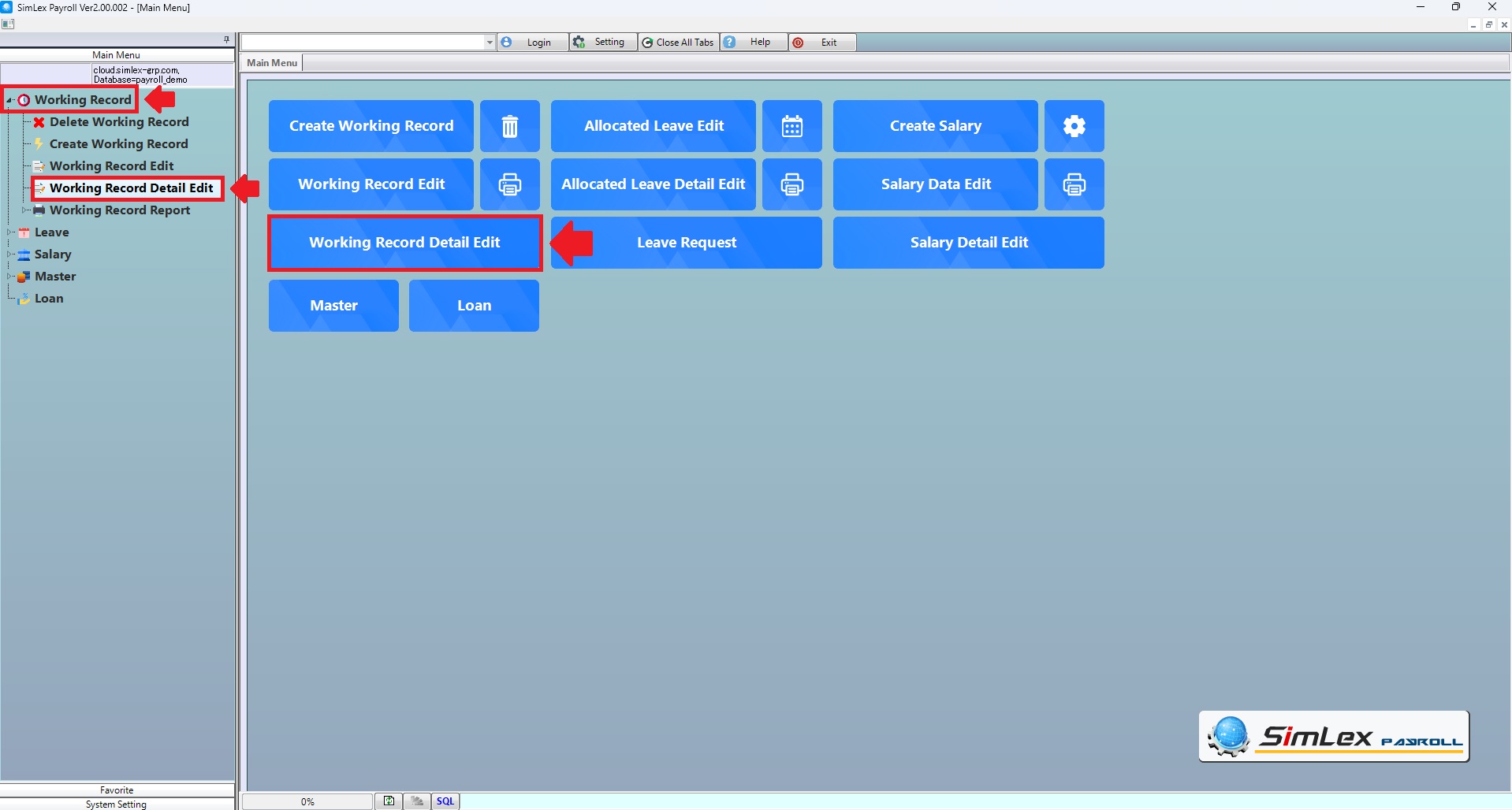
Picture 1 click menu working record detail edit.
2. The system displays more details to edit the information. When finish, click button <Register>.
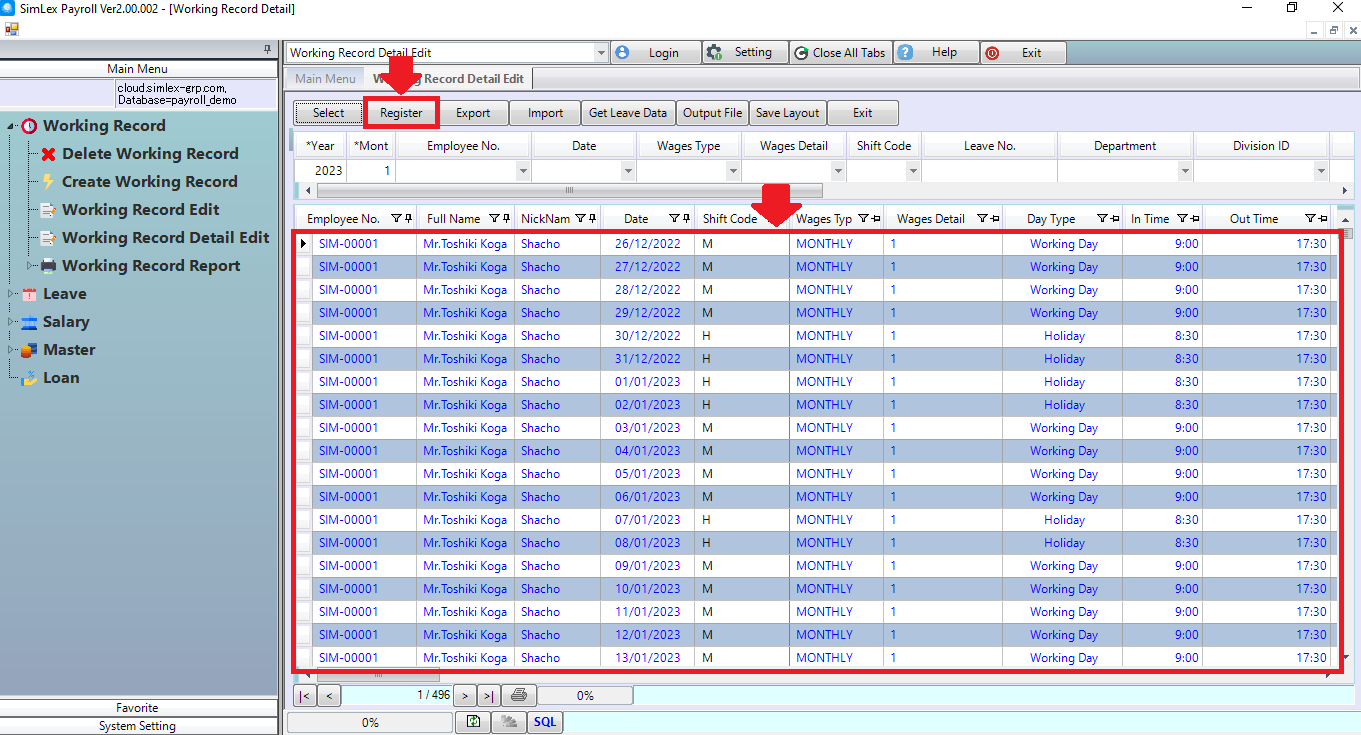
Picture 2 The system displays the information window to edit the information.
When using a finger, card or eye scanner. If you need information the time in-out the work of employees in the company. You can import data by click button <Import> (The system will import data according to the form provided).
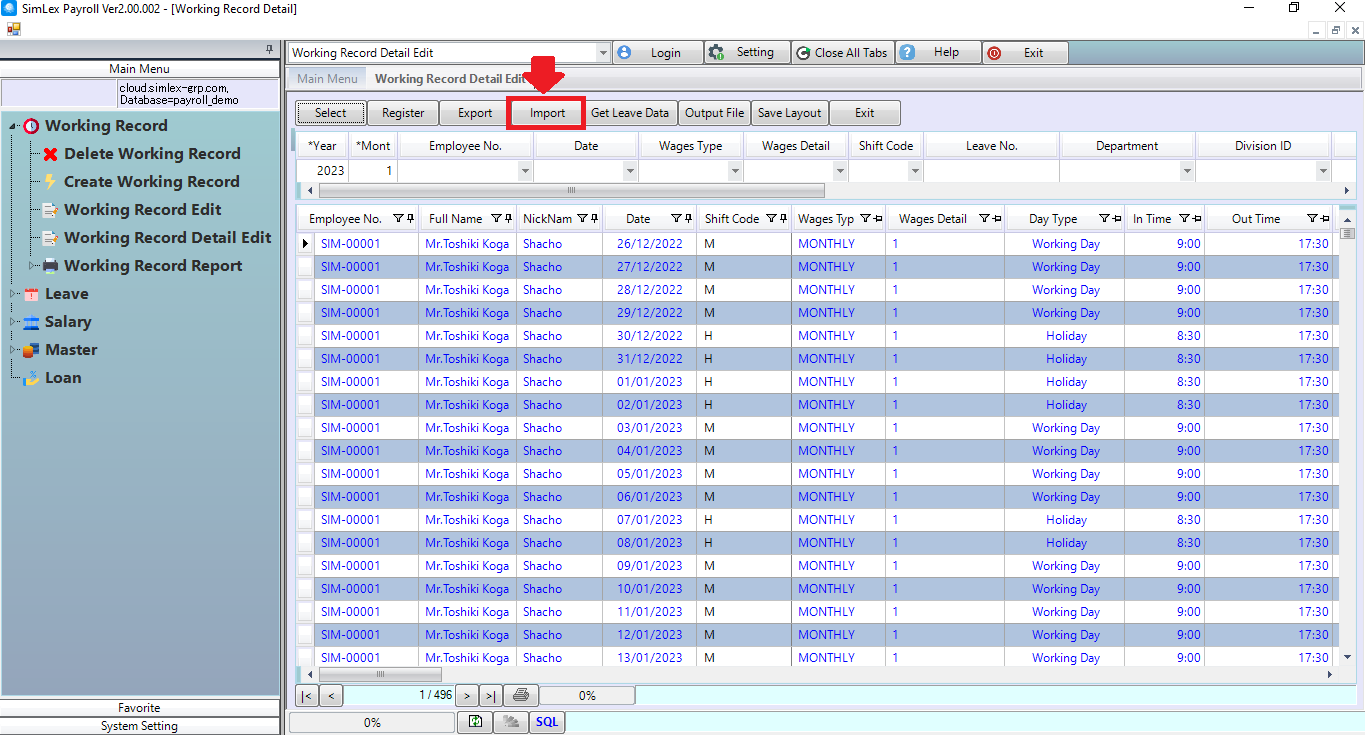
Picture 3 Window display of imported information.
In case you want to export data for the in-out times of employees in the company, you can click to select the recording address. (The system will extract data according to the format provided in the system).
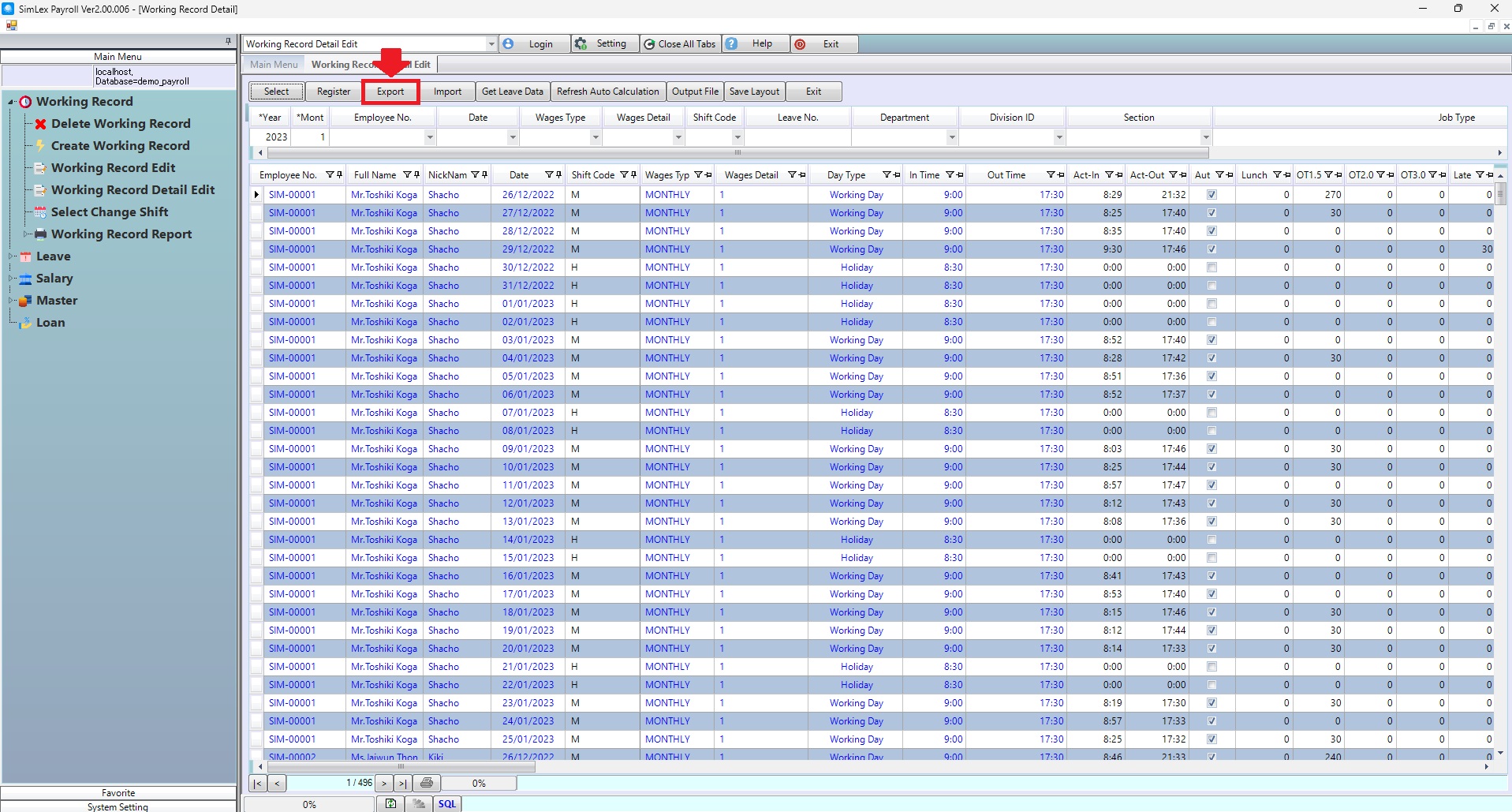
Picture 4 Export data.
In the case where there are employees on leave Leave information must be taken into account during working hours. click button <Get Leave Data> check the employee’s leave, then click <Apply Data>, when finished, click <Yes>.
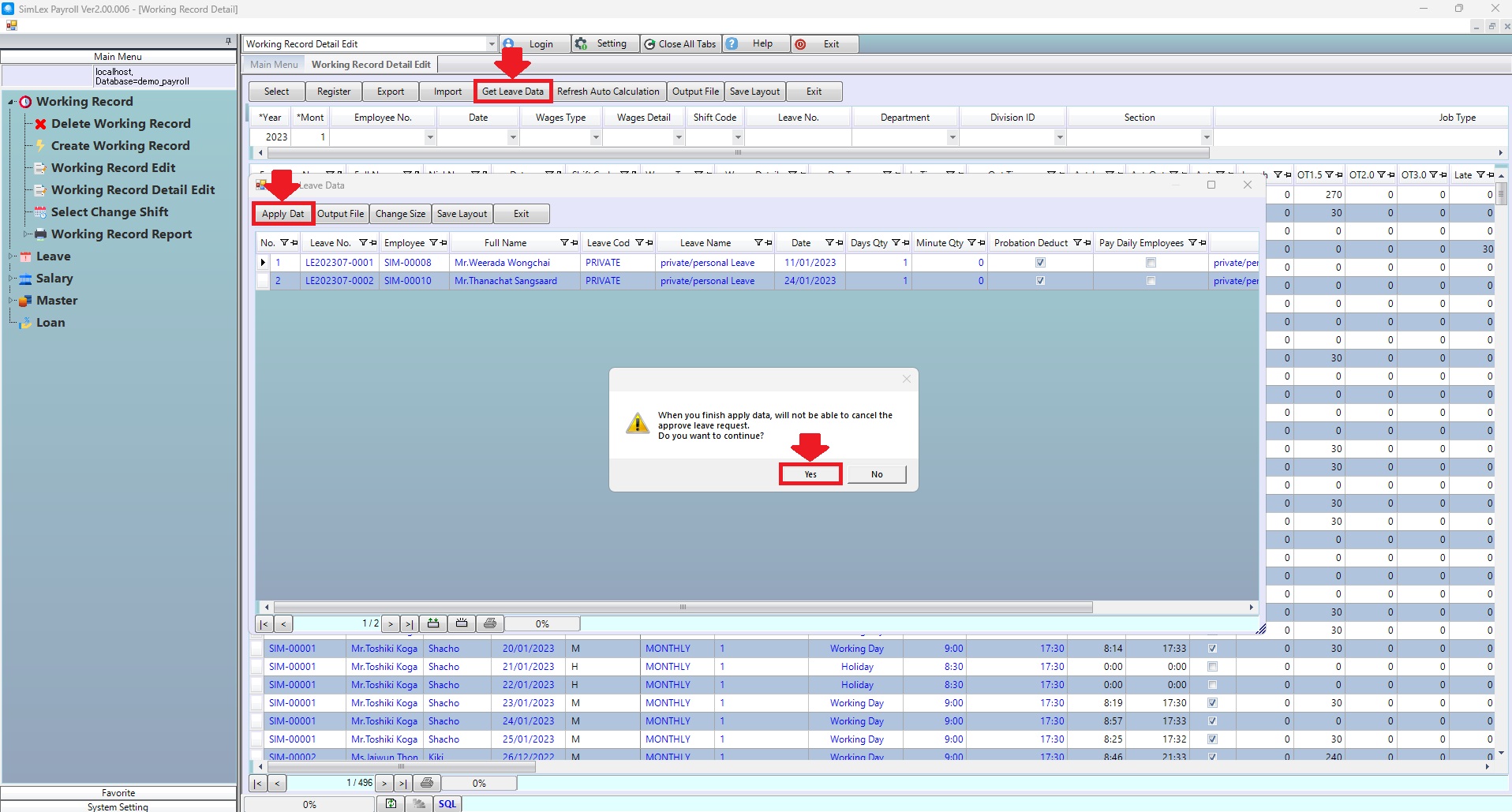
Picture 5 Get Leave Data.
If you want the system to recalculate the values again, click <Refresh Auto Calculation>.
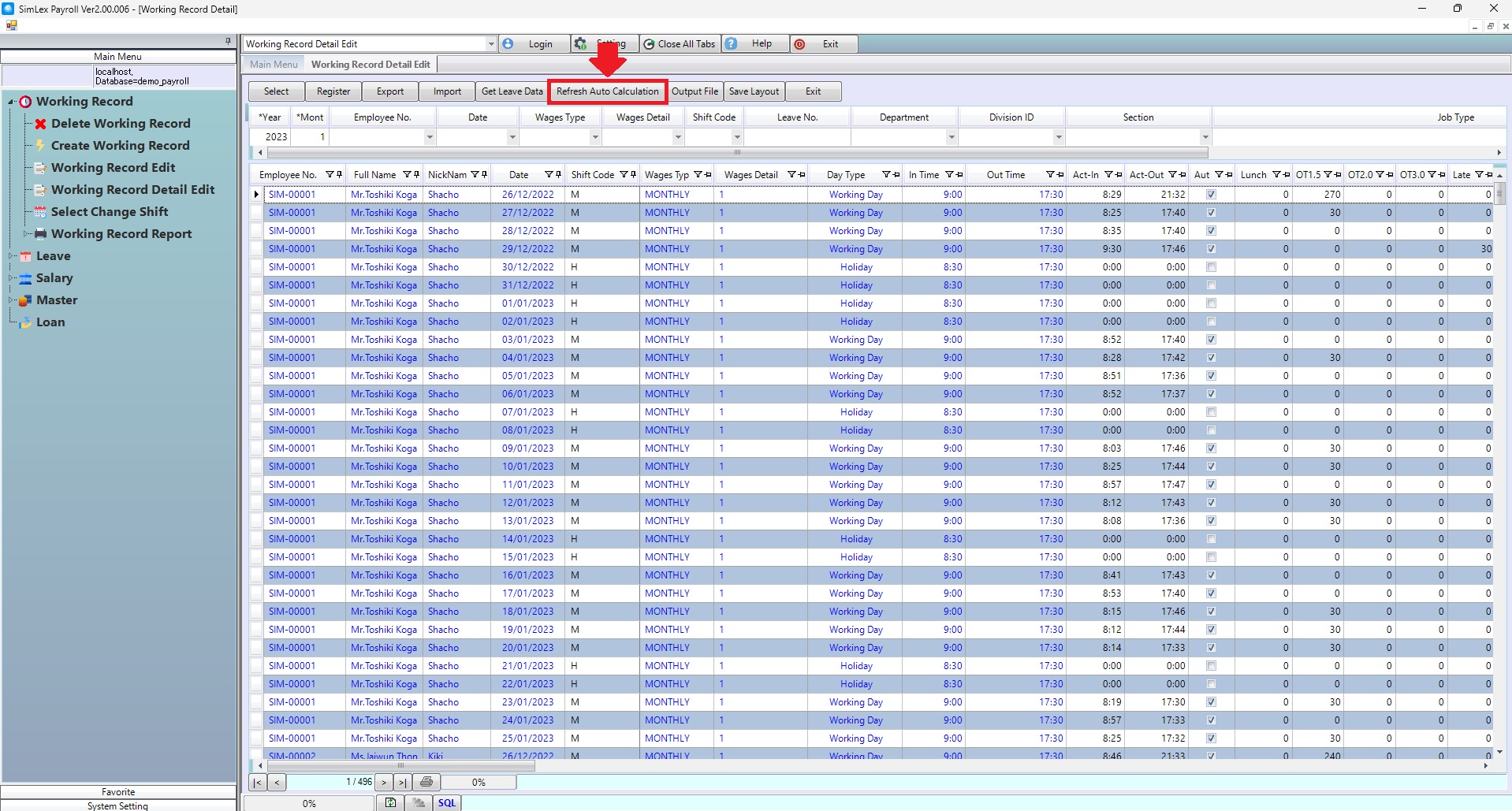
Picture 6 Refresh Auto Calculation.
| Field name Main menu | Information detail |
| This Year | The system display work record of the last year. |
| This Month | The system display work record of the last month. |
| Employee No. | Select Employee No. |
| Date | Working day. |
| Wages Type | Select Wages Type Code. |
| Wages Detail | Select Wages Detail Code. |
| Shift Code | Select Shift Code. |
| Leave No. | Enter Leave No. |
| Department | Select Department Code. |
| Division ID | Select Division ID. |
| Section | Select Section Code. |
| Job Type | Select Job Type. |
| Position | Select Position. |
| Field name input data | Information input detail |
| Shift Code | Select Shift Code. |
| Act-In Time | Enter actual work in time. |
| Act-Out Time | Enter actual work out time. |
| Auto Calculate | Check the box to allow the system to automatically calculate the data. |
| Lunch OT | Fill in the time for OT during noon. (enter in minutes). |
| OT 1.5 | Enter the time spent doing OT at the rate of 1.0 (enter in minutes). |
| OT 2.0 | Enter the time spent doing OT at the rate of 2.0 (enter in minutes). |
| OT 3.0 | Enter the time spent doing OT at the rate of 3.0 (enter in minutes). |
| Lateness | Enter the time of being late. (enter in minutes). |
| Paid Holiday | Check the box to holiday pay only for daily employees. |
| Special Holiday | Check the box to Special Holiday. |
| Shift Allowance | Enter the amount paid for the entire day’s shift. (When working for 8 hours). |
| Additional Allowance | Enter the total amount paid for the entire shift. |
| Absence (Day) | Automatic data display system according to calculations <Get Leave Data>. |
| Absence (Min) | Automatic data display system according to calculations <Get Leave Data>. |
| Leave No. | Automatic data display system according to calculations <Get Leave Data>. |
| Leave Code | Automatic data display system according to calculations <Get Leave Data>. |
| Probation Deduct | Check the box to probation Deduct. |
| Pay Daily Employees | Check the box to pay daily employees. |
| Absence Reason | Automatic data display system according to calculations <Get Leave Data>. |