Leave Request
When wanting to record leave to prepare leave sheets for company employees. This can be done with the following steps.
1. Click <Leave Request> from the main menu or double click from the left menu <Leave> and then double click <Leave Request>.
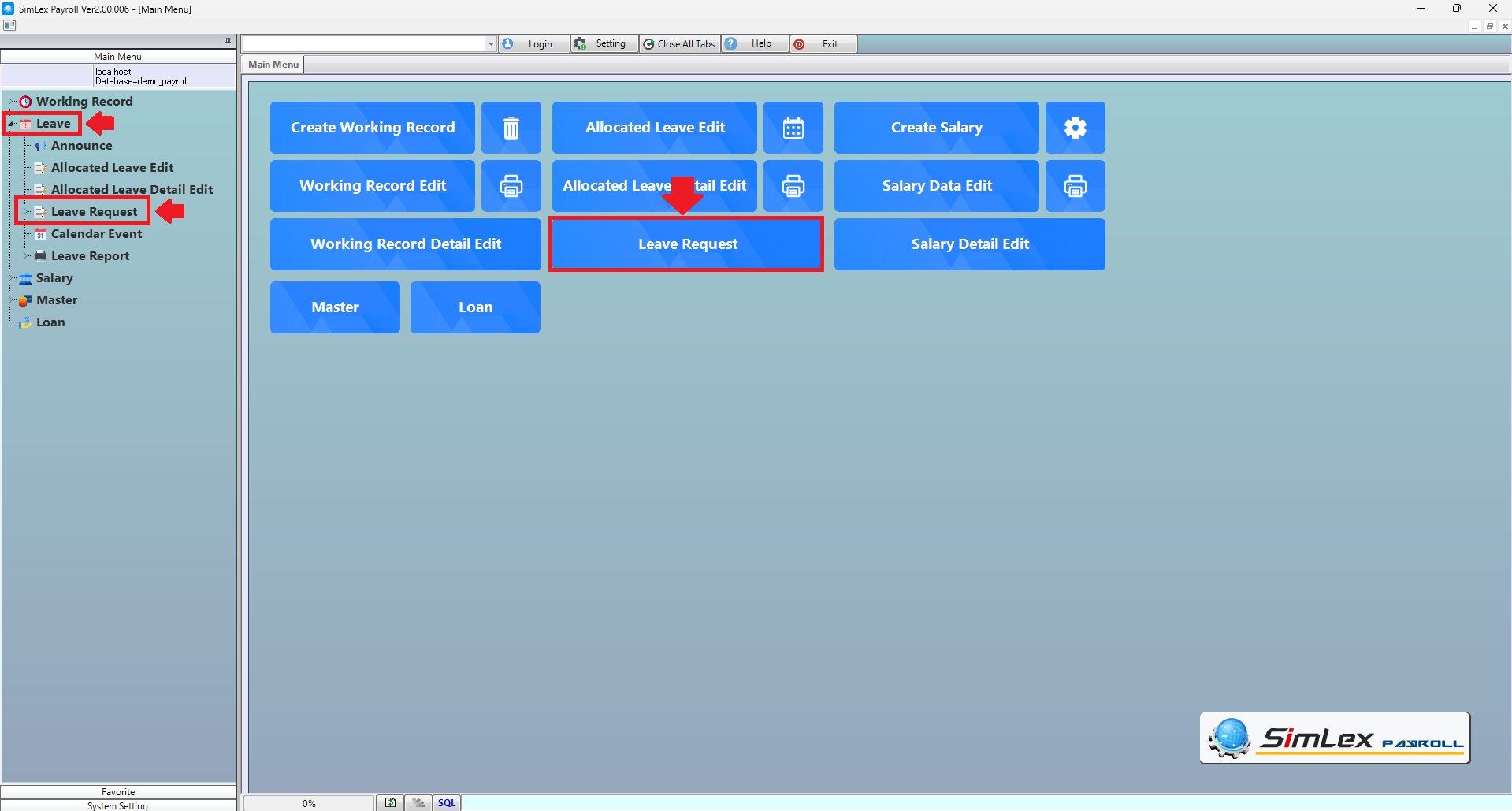
Picture 1 Menu Leave Request.
The system displays information, then click< New>.
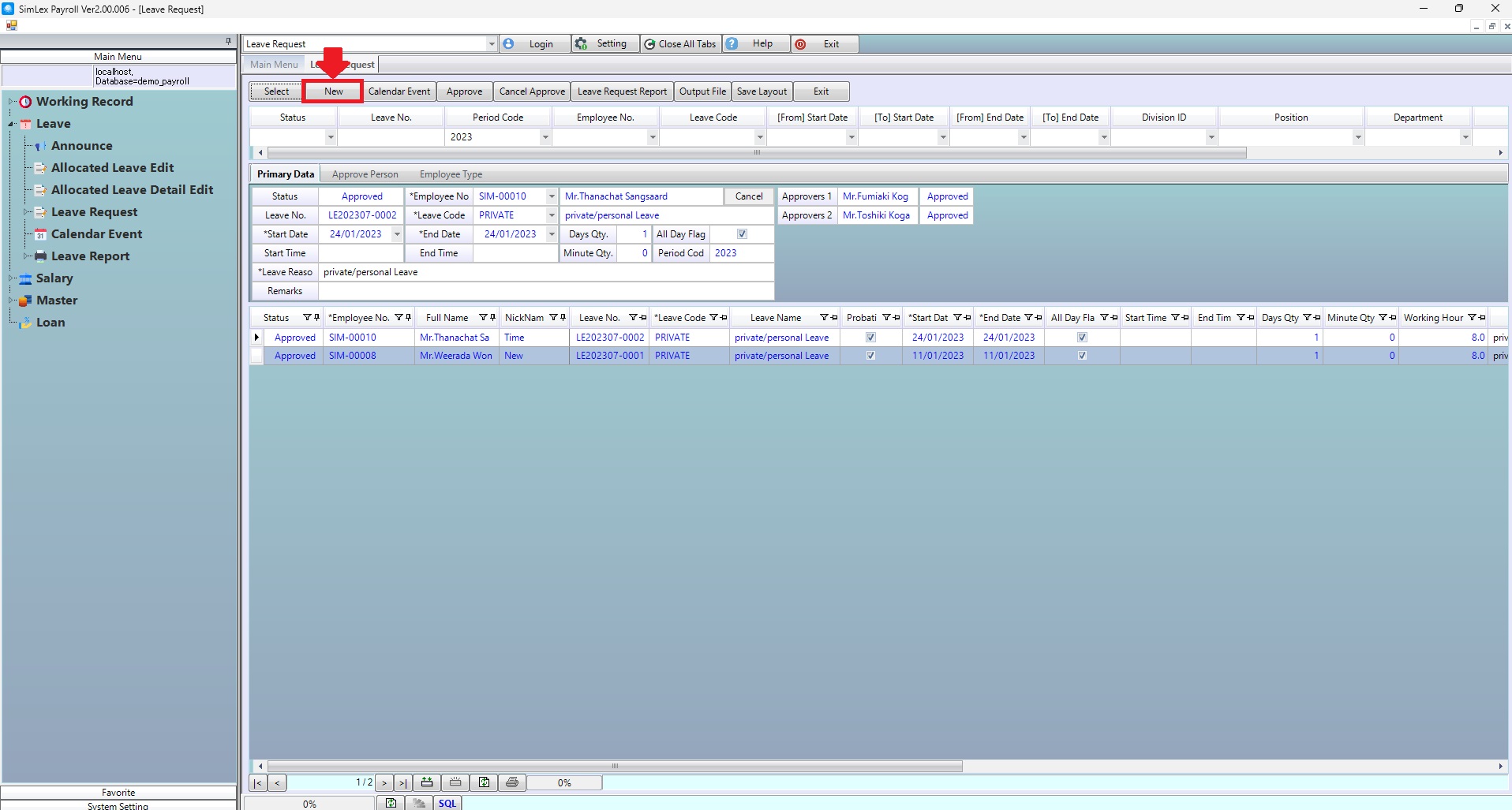
Picture 2 The system displays the information.
2. Fill in the information and click<Add>, When the information is complete, click <Register>.
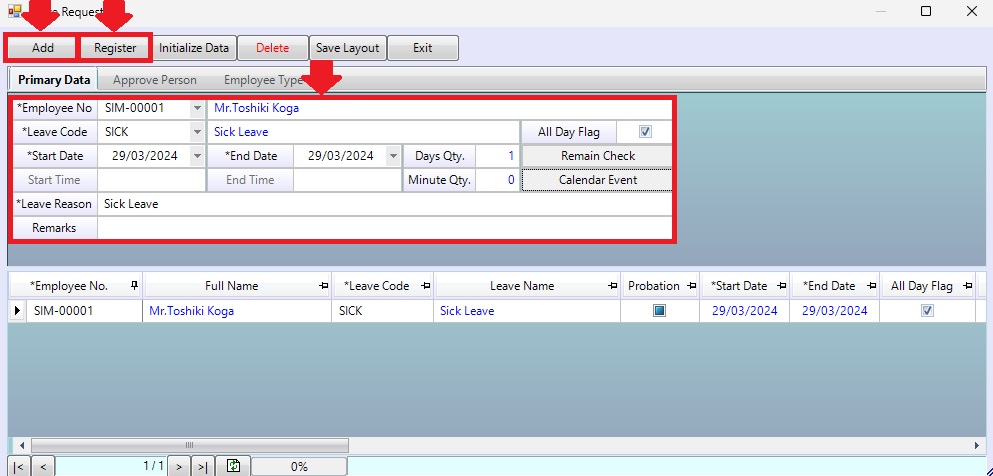
Picture 3 Add information.
| Field name Main menu | Search for details of information |
| Status | Select for Rejected, Canceled, Pending, Approved. |
| Leave No. | Enter leave no. |
| Period Code | Select period code. |
| Employee No. | Select employee no. |
| Leave Code | Select leave code. |
| [From] Star Date | Select from star date. |
| [To] Star Date | Select to star date. |
| [From] End Date | Select from end date. |
| [To] End Date | Select to end date. |
| Division ID | Select division id. |
| Position | Select position. |
| Department | Select department. |
| Section | Select section. |
| Job Type | Select job type. |
| Field name input data | Information input detail |
| Employee No. | Select employee no. |
| Leave Code | Select leave code. |
| All Day Flag | Check to box for leave all day. |
| Start Date | Select start date. |
| End Date | Select end date. |
| Remain Check | Click for Remain leave balance. |
| Start Time | Enter start time (in case don’t check to box ”All Day Flag”). |
| End Time | Enter end time (in case don’t check to box ”All Day Flag”). |
| Calendar Event | Click for check calendar event. |
| Leave Reason | Enter leave reason. |
| Remarks | Enter remarks. |