Calendar Event
To set company holidays or check employee leave days, This can be done with the following steps.
1. Click<Icon Calendar> from the main menu double click from the left menu <Leave> and then double click on the menu <Calendar Event>.
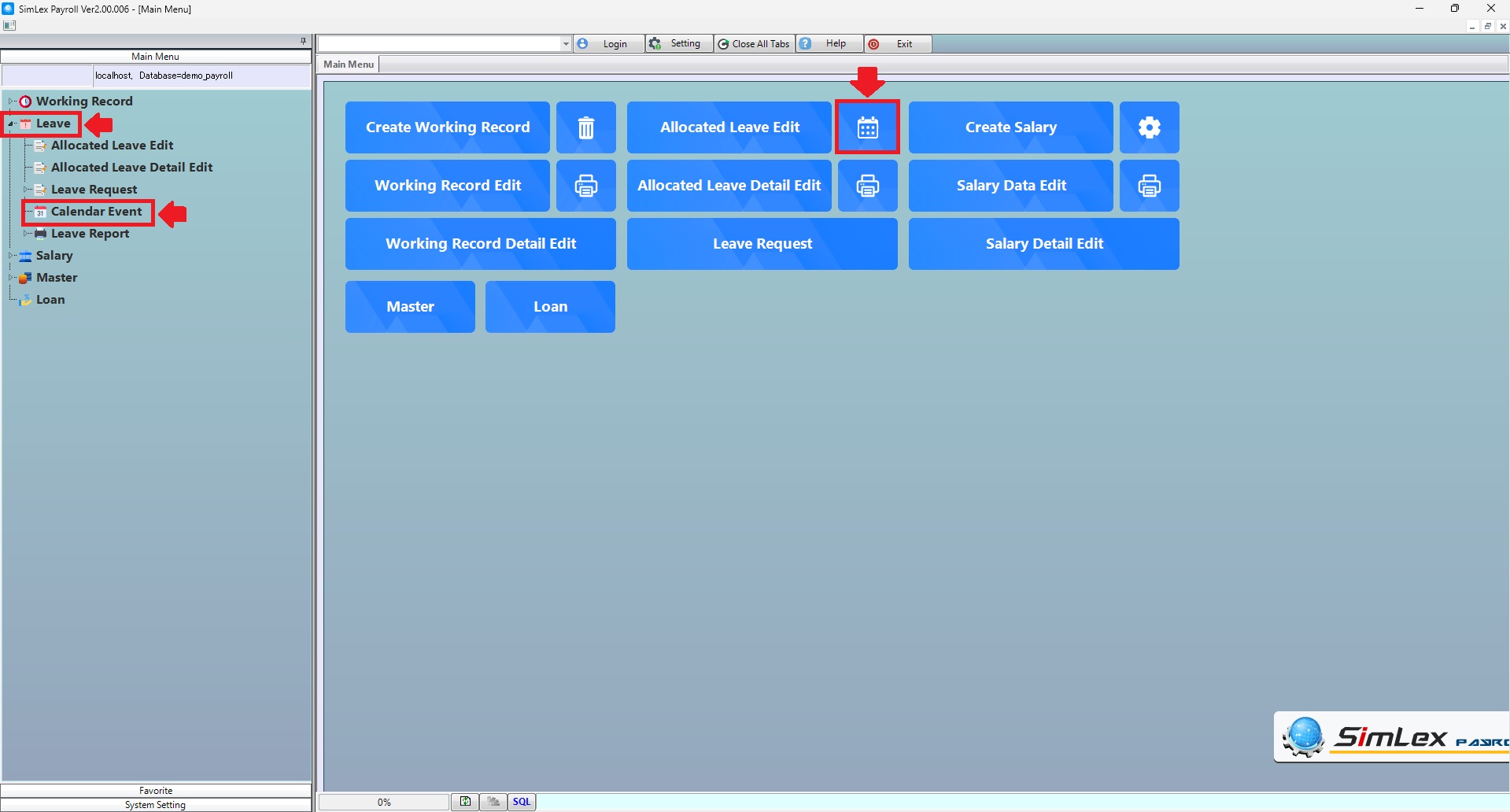
Picture 1 Click Menu Calendar Event.
The system displays the information, then double click <Date field> or click <Edit Calendar Event> for enter the information.
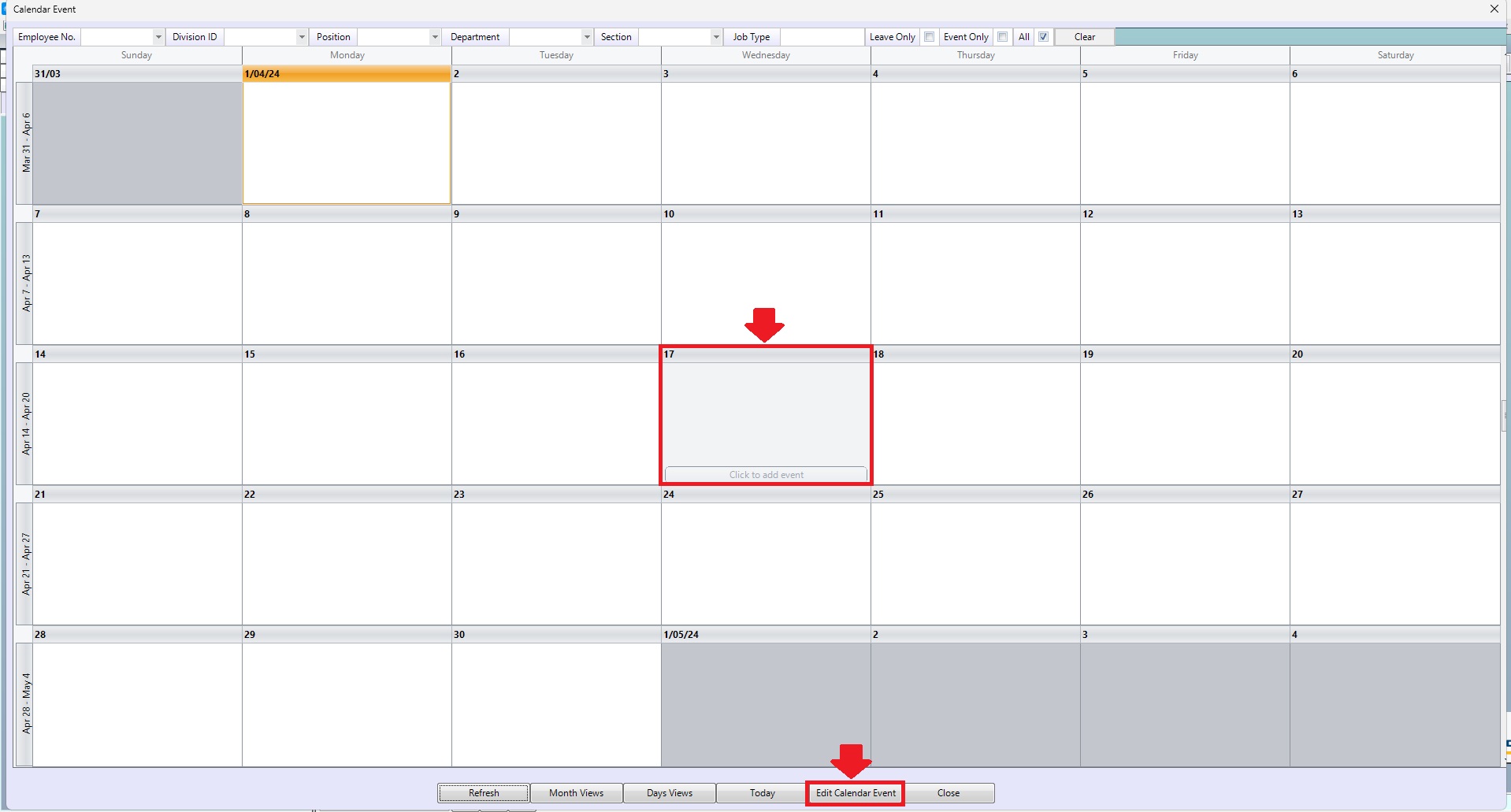
Picture 2 The system displays the information.
2. Fill in the information completely, then click <Add>. When you have verified the information is correct and complete, click <Register>.
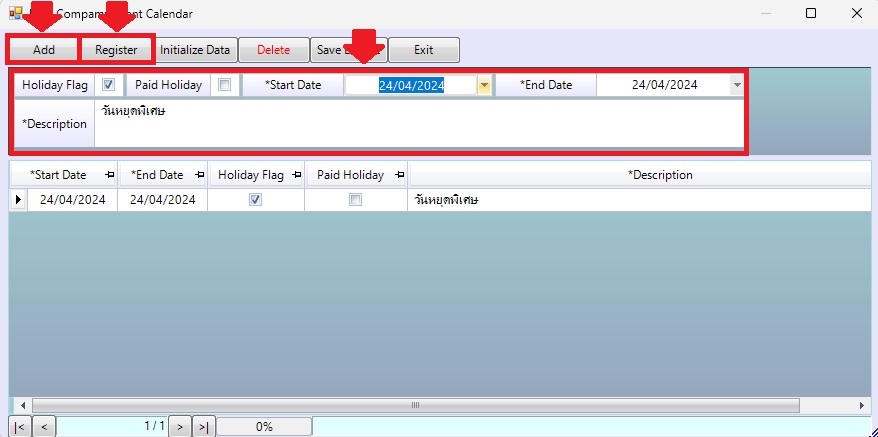
Picture 3 Register.
| Field name Main menu | Search for details of information |
| Employee No. | Select employee no. |
| Division ID | Select division id. |
| Position | Select position. |
| Department | Select department. |
| Section | Select section. |
| Job Type | Enter job type. |
| Leave Only | Check box for display leave only. |
| Event Only | Check box for display event only. |
| All | Check box for display all. |
| Field name input data | Information input detail |
| Holiday Flag | Check box for holiday flag (display on web). |
| Paid Holiday | Check box for paid holiday (display only and don’t calculate). |
| Start Date | Select start date. |
| End Date | Select end date. |
| Description | Enter description. |
| Copy Last year’s holiday | Copy Last year’s holiday |