Salary Slip Report
When you want to see details or print a report About the salary slip report of employees in the company, You can choose to view the report as follows.
1. Click <Icon Printer> from the main menu or double click from the left menu <Salary>, then double click on the menu<Salary Report>. The system will display 7 submenus, then click <Salary Slip Report>.
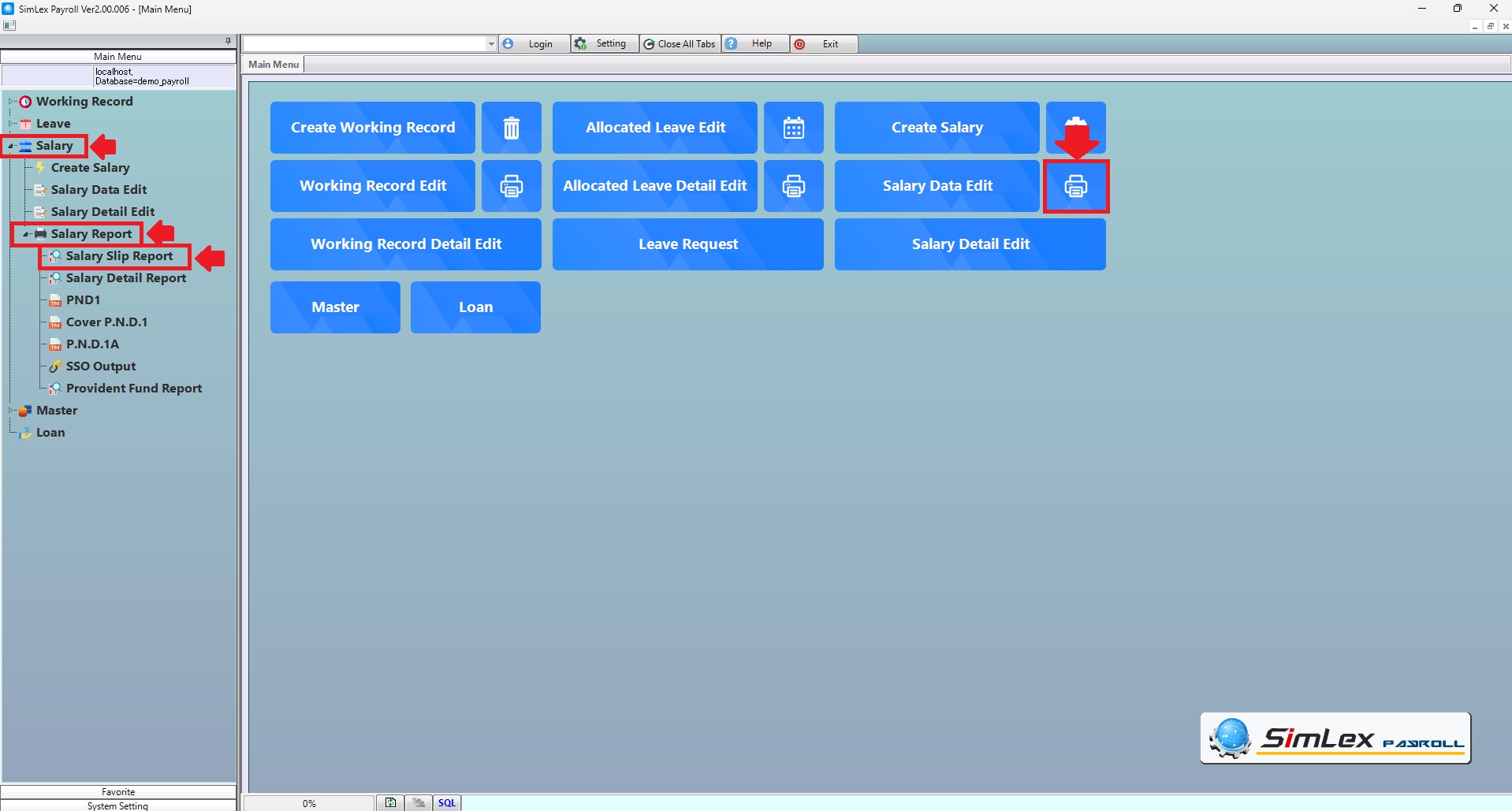
Picture 1 Click Menu Salary Slip Report.
2. Fill in the information you want to search. Then click <Data Display> to display information or click <Output Data(O)>, click <Save Split to Multi PDF> or click <Save to PDF> to print a salary slip report.
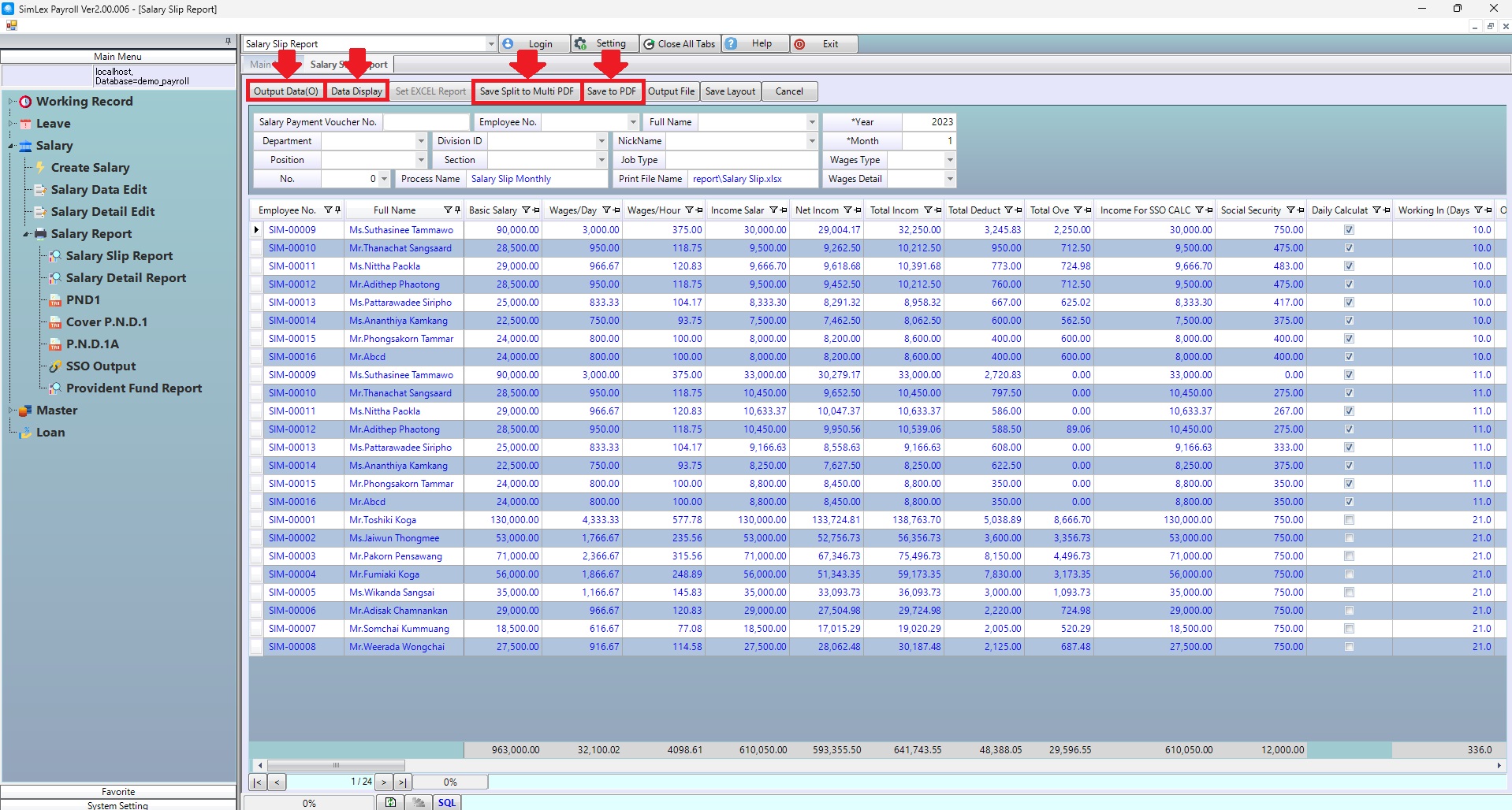
Picture 2 Print salary slip report.
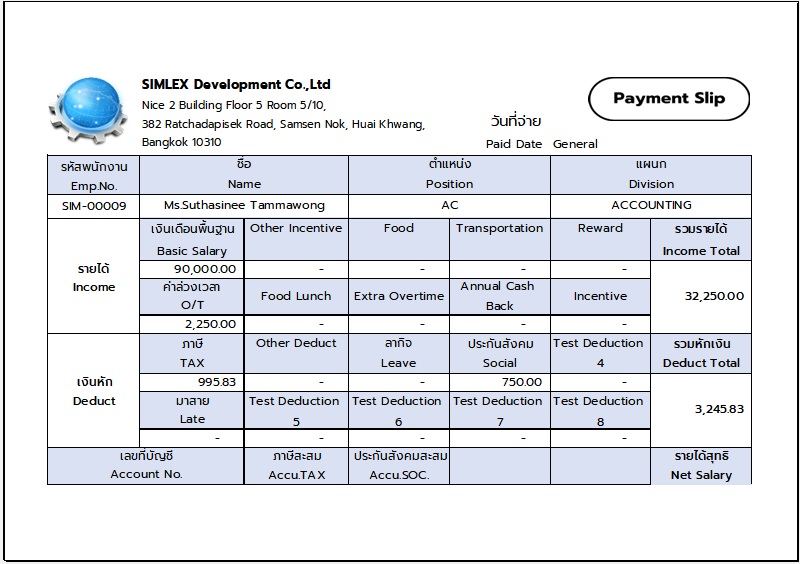
Picture 3 Salary slip report.
| Field name main menu | Information detail |
| Salary Payment Voucher No | Select salary payment voucher no. |
| Employee No. | Select employee no. |
| Full Name | Select full name. |
| Year | The system auto displays the information. |
| Department | Select department. |
| Division ID | Select division id. |
| Nick Name | Select nick name. |
| Month | The system auto displays the information. |
| Position | Select position. |
| Section | Select section. |
| Job Type | Enter Job type. |
| Wages Type | Select wages detail. |
| No. | Select format report. |
| Wages Type | Select wages detail. |