Salary Setting
To set up salary calculations for company employees This can be done with the following steps.
1. Click <Image setting> from the main menu or double click from the left menu <Master> and then double click on the menu <Salary setting>.
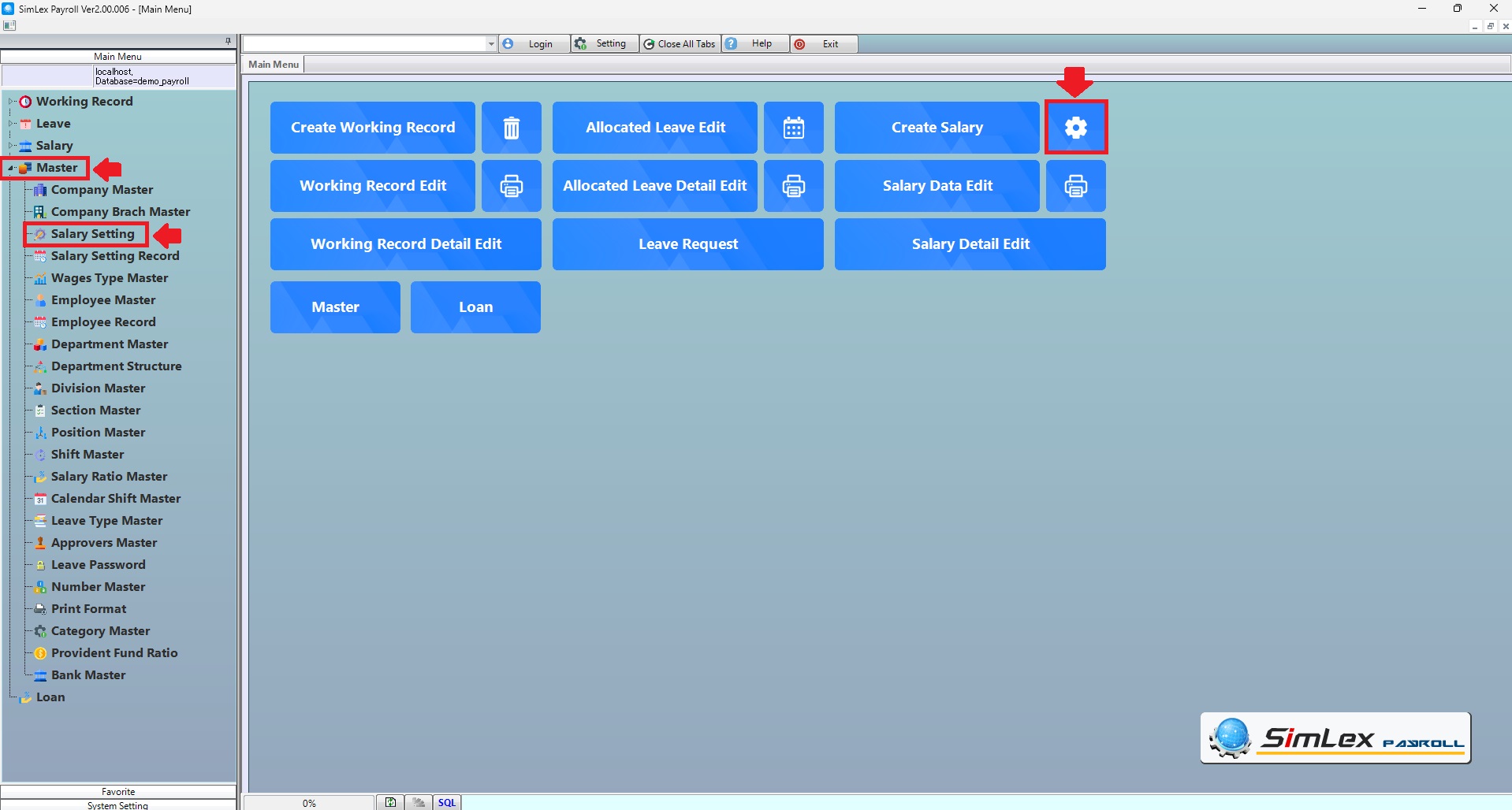
Picture 1 Click menu Salary setting.
2. The data display system, click on the Sheet that you want to edit data.
2.1 Sheet <Primary data>, when you are finished filling in the data. Edit the date field <Effective Date> to allow data to be processed from the date entered onwards. When finished, click <Register>.
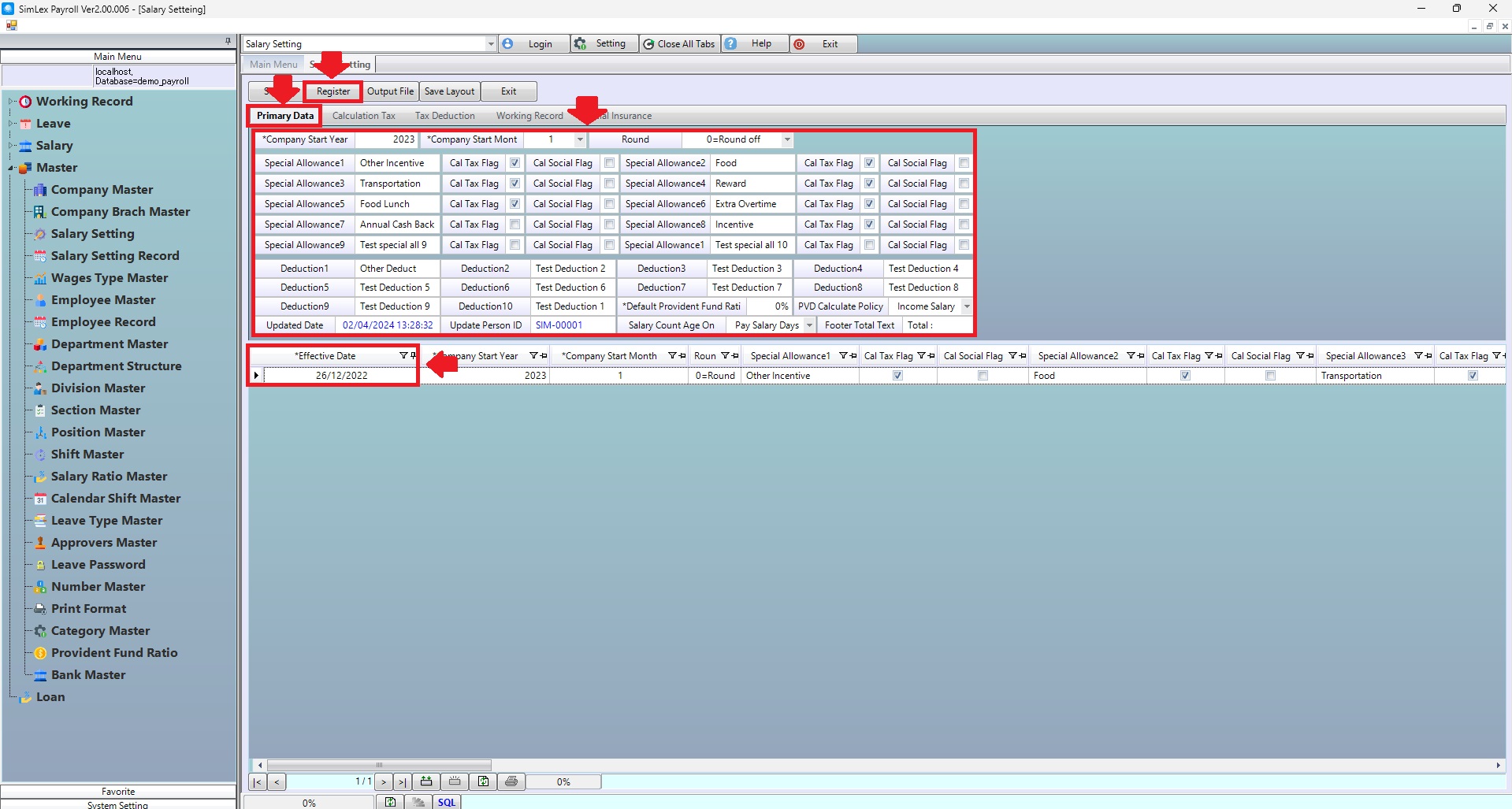
Picture 2 Sheet <Primary data>.
| Field name input data | Information input detail |
| Company Start Year | Set company start year. |
| Company Start Month | Set company start month. |
| Round | Select round 0=Round off, 1=Round Down, 2=Round Up (system auto set is 0=Round off 2 digits). |
| Special Allowance 1 | Set special allowance 1. |
| Special Allowance 2 | Set special allowance 2. |
| Special Allowance 3 | Set special allowance 3. |
| Special Allowance 4 | Set special allowance 4. |
| Special Allowance 5 | Set special allowance 5. |
| Special Allowance 6 | Set special allowance 6. |
| Special Allowance 7 | Set special allowance 7. |
| Special Allowance 8 | Set special allowance 8. |
| Special Allowance 9 | Set special allowance 9. |
| Special Allowance 10 | Set special allowance 10. |
| Cal Tax Flag | Check box for calculate tax. |
| Cal Social Flag | Check box for calculate social. |
| Deduction 1 | Set deduction 1. |
| Deduction 2 | Set deduction 2. |
| Deduction 3 | Set deduction 3. |
| Deduction 4 | Set deduction 4. |
| Deduction 5 | Set deduction 5. |
| Deduction 6 | Set deduction 6. |
| Deduction 7 | Set deduction 7. |
| Deduction 8 | Set deduction 8. |
| Deduction 9 | Set deduction 9. |
| Deduction 10 | Set deduction 10. |
| Default Provident Fund Ratio | Set default provident fund ratio (Auto display in employee master). |
| PVD Calculate Policy | Select income salary (Calculate from basic salary), total income (Calculate from total income). |
| Salary Count Age on | Select 1st of Month, End of Month, Pay Salary Days (System auto Pay Salary Days). |
| Footer Total Text | System auto is “Total:”. |
2.2 Sheet <Calculation Tax> when the information is completed. Edit the date field <Effective Date>. To allow data to be processed from the date entered onwards. When finished, click <Register>.
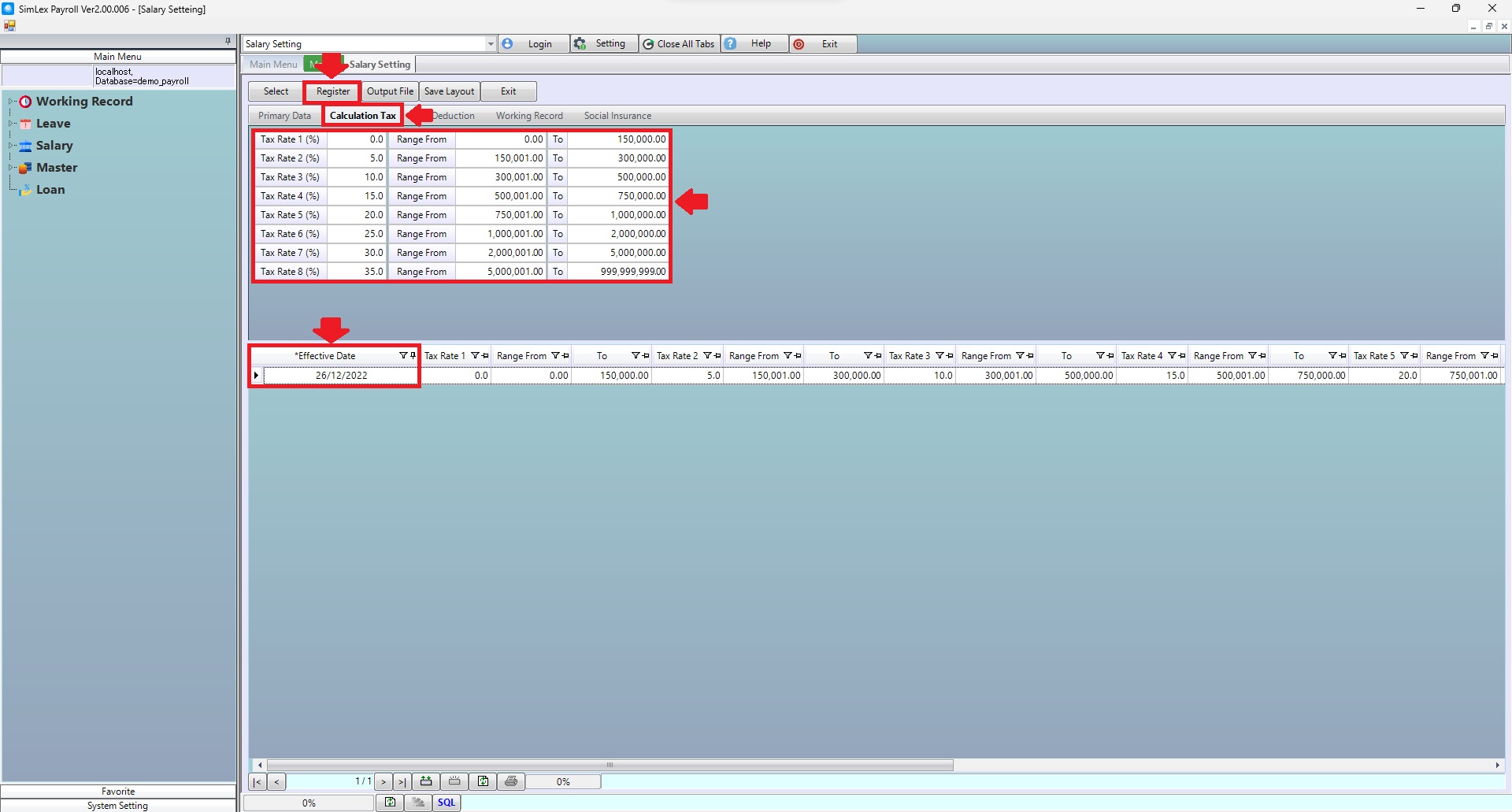
Picture 3 Sheet <Calculation Tax>.
| Field name input data | Information input detail |
| Tax Rate 1 (%) | Set progressive tax rates lv.1. |
| Tax Rate 2 (%) | Set progressive tax rates lv.2. |
| Tax Rate 3 (%) | Set progressive tax rates lv.3. |
| Tax Rate 4 (%) | Set progressive tax rates lv.4. |
| Tax Rate 5 (%) | Set progressive tax rates lv.5. |
| Tax Rate 6 (%) | Set progressive tax rates lv.6. |
| Tax Rate 7 (%) | Set progressive tax rates lv.7. |
| Tax Rate 8 (%) | Set progressive tax rates lv.8. |
| Range From | Set income from. |
| To | Set income to. |
2.3 Sheet <Tax Deduction> when the information is completed. Edit the date field <Effective Date> to allow data to be processed from the date entered onwards. When finished, click <Register>.
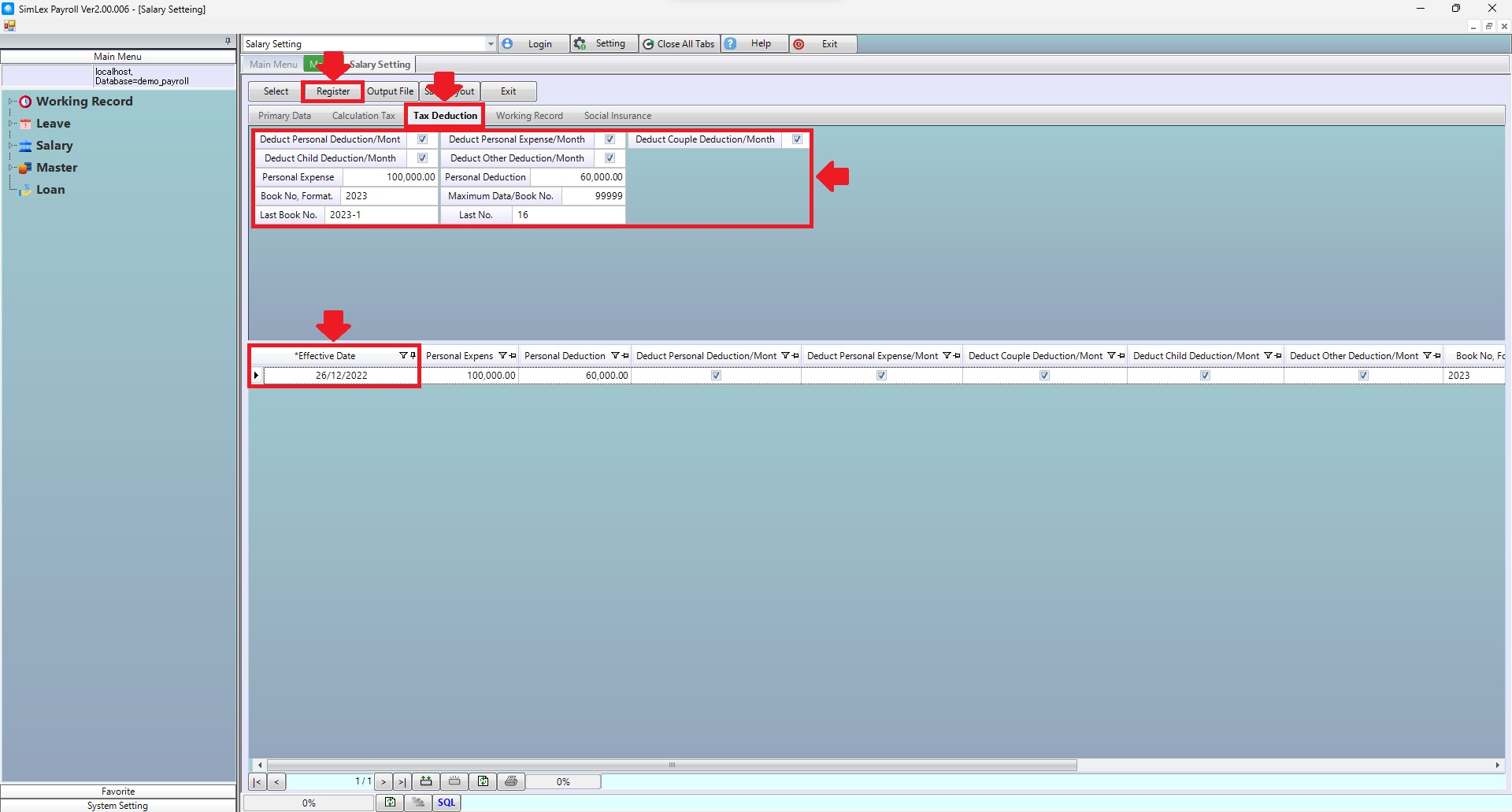
Picture 4 Sheet <Tax Deduction>.
| Field name input data | Information input detail |
| Deduct Personal Deduction/Month | Check box for |
| Deduct Personal Expense/Month | Check box for |
| Deduct Couple Deduction/Month | Check box for |
| Deduct Child Deduction/Month | Check box for |
| Deduct Other Deduction/Month | Check box for |
| Personal Expense | Set personal expense. |
| Personal Deduction | Set personal deduction. |
| Book No, Format. | Set year for withholding tax report. |
| Maximum Data/Book No. | Set “9999” |
| Last Book No. | Set last book no for withholding tax report. |
| Last No. | Set last no for withholding tax report. |
2.4 Sheet <Working Record> when the information is completed. Edit the date field <Effective Date> to allow data to be processed from the date entered onwards. When finished, click <Register>.
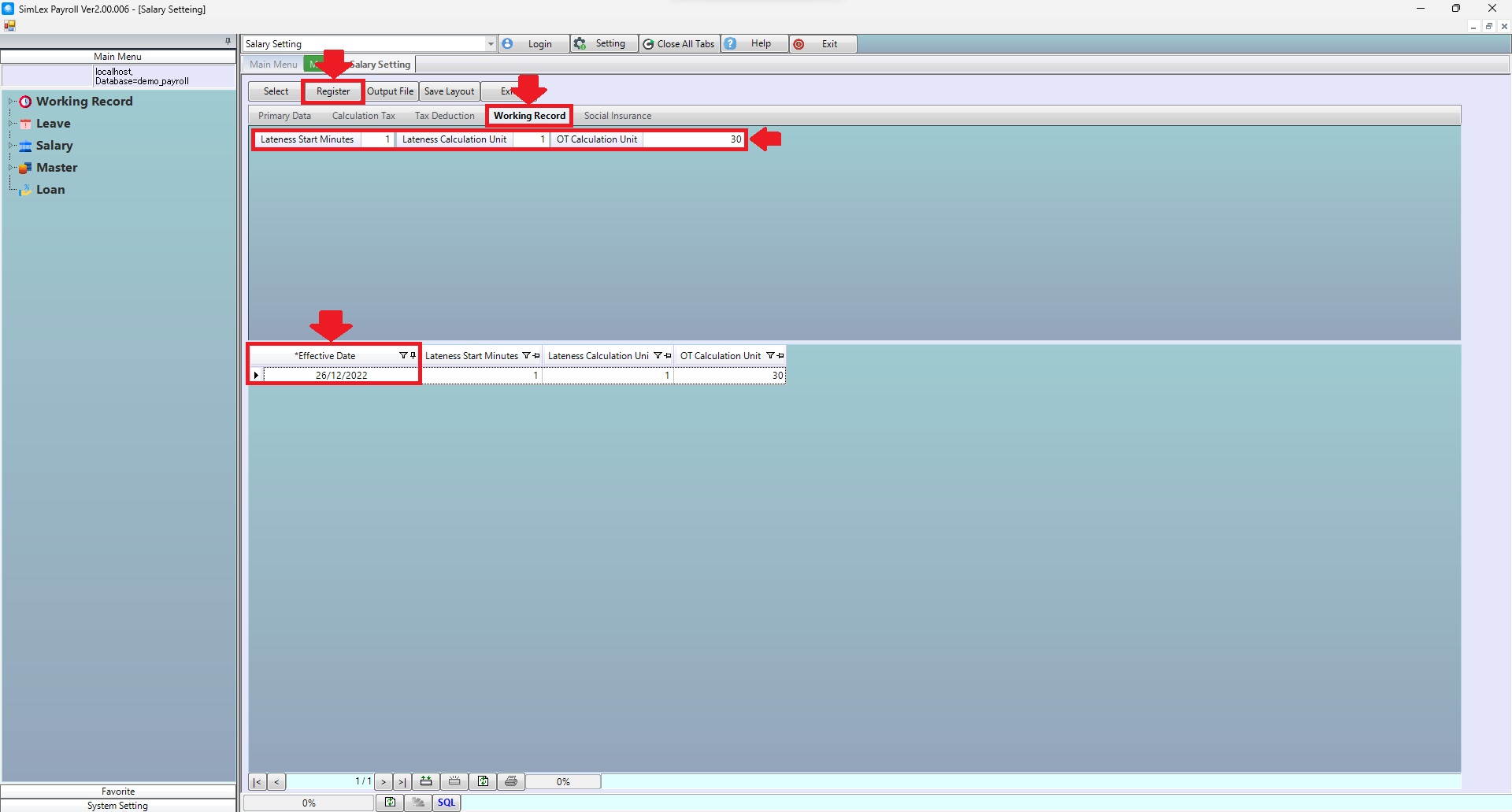
Picture 5 Sheet <Working Record>.
| Field name input data | Information input detail |
| Lateness Start Minutes | Set the late time. For example, if you set it to 10 minutes, if you are late for no more than 10 minutes or up to 10 minutes, the system will not calculate the late time. But if it reaches the 11th minute, the system will calculate calls as soon as the total time is 11 minutes late (if you enter 0, it will start counting calls from the first minute. If you enter 1, it will start counting calls from the 2nd minute) (Lateness calculation Unit is set to 0. or 1). |
| Lateness Calculation Unit | Sets the late time by calculating it in intervals. For example, if it is set to 10 minutes, if you are late for no more than 10 minutes, the system will not calculate the late time. But if it reaches the 10th minute, the system will calculate the total 10 minutes of late time. But if it reaches the 11th minute, the system will calculate only 10 minutes late because the interval is set to 10 minutes. If you are late until the 20th minute, the system will calculate the lateness as 20 minutes, increasing by 10 minutes according to the late time period (if you enter 0 Will start counting calls from the first minute. If you enter 1, calls will start counting from the 2nd minute.). |
| OT Calculation Unit | Sets the OT time in intervals. For example, if it is set to 30 minutes, if OT is done until the 30th minute or OT has been done for 30 minutes, the system will calculate OT for 30 minutes. But if it is not until the 30th minute, OT will not be calculated. And if OT has been done 40 minutes, the system will calculate OT only 30 because it is set to 30 minutes, which must be made to 60 minutes to get OT 60 minutes (if you enter 0 or 1, OT will start counting from the first minute). |
2.5 Sheet <Social Insurance> when the information is completed. Edit the date field <Effective Date> To allow data to be processed from the date entered onwards. When finished, click <Register>
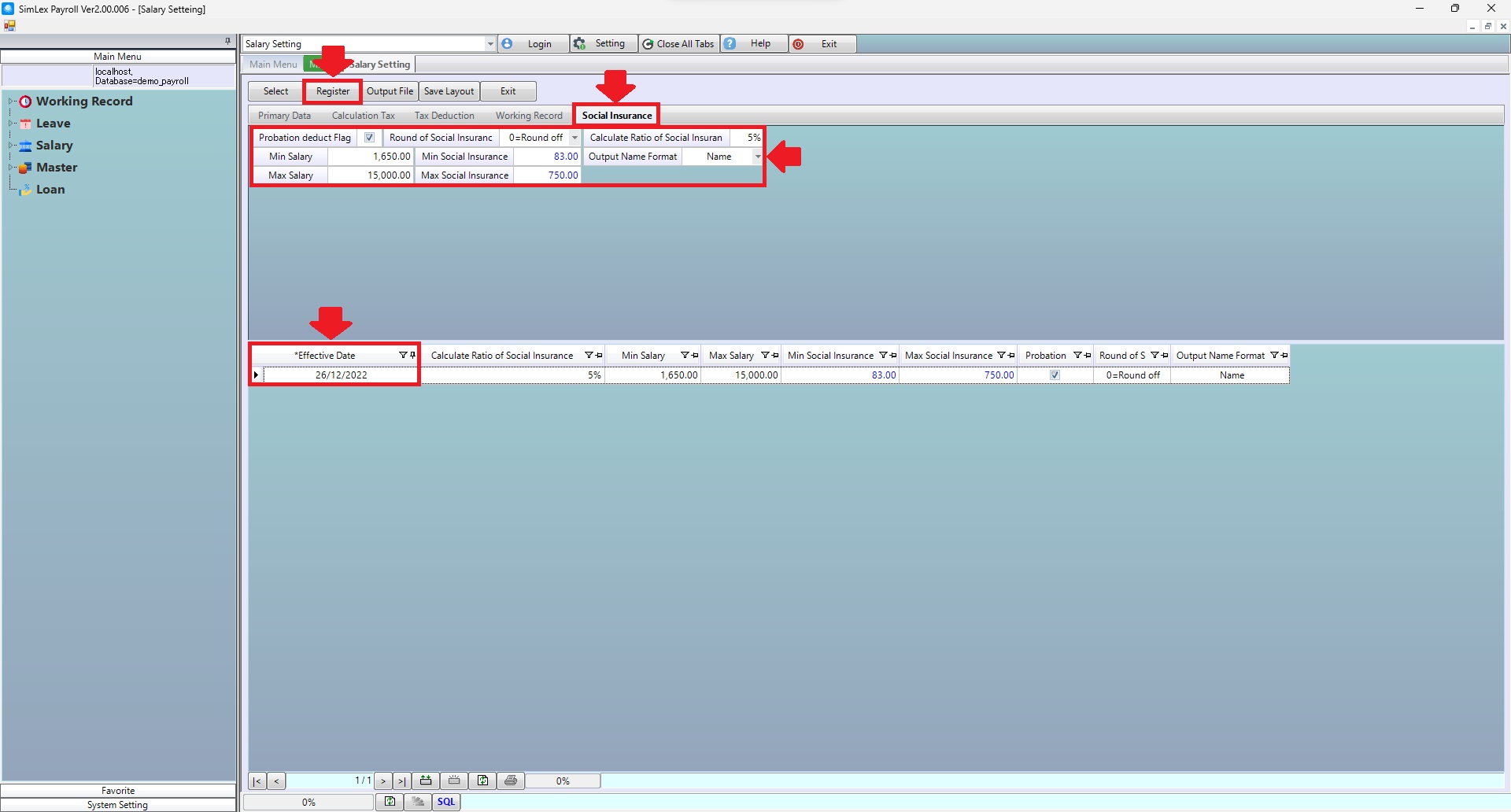
Picture 6 Sheet <Social Insurance>.
| Field name input data | Information input detail |
| Probation deduct Flag | Check box for probation deduct. |
| Round of Social Insurance | Select 0=Round off, 1=Round Down, 2=Round Up (System auto 0=Round off for 2 digits). |
| Calculate Ratio of Social Insurance | Set calculate ratio of social insurance. |
| Min Salary | Set min salary. |
| Output Name Format | Set output name format (from employee master). |
| Max Salary | Set max salary. |