Company Master
To create company master data you can create it with the following steps.
1. Click <Master> from the main menu or double click from the left menu <Master> and then double click on the menu <Company Master>.
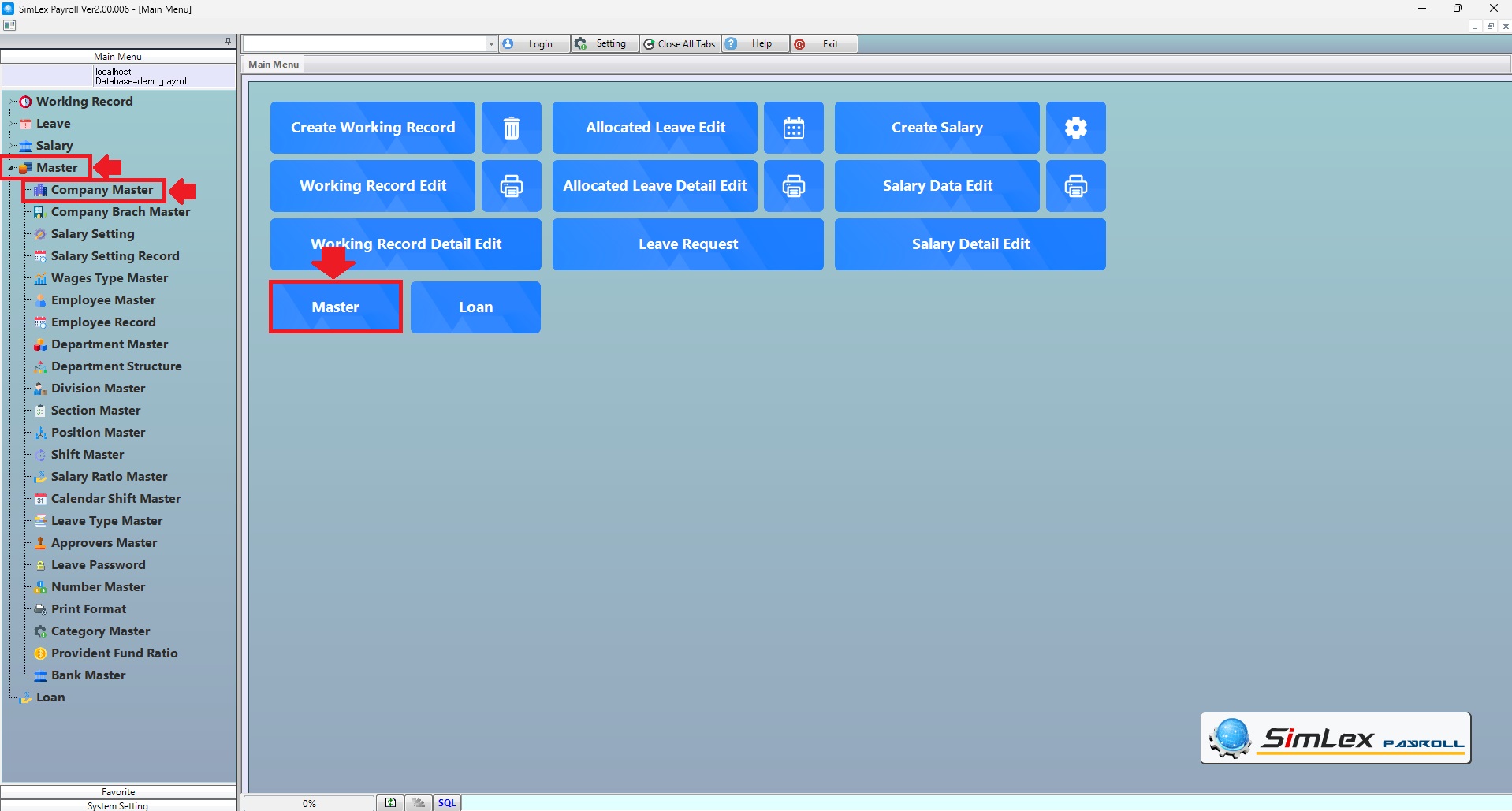
Picture 1 Click menu Company Master.
2. The system will display an information window. Click then <New> click to select <After copying active row. you can enter new data>. When finished, click <OK>
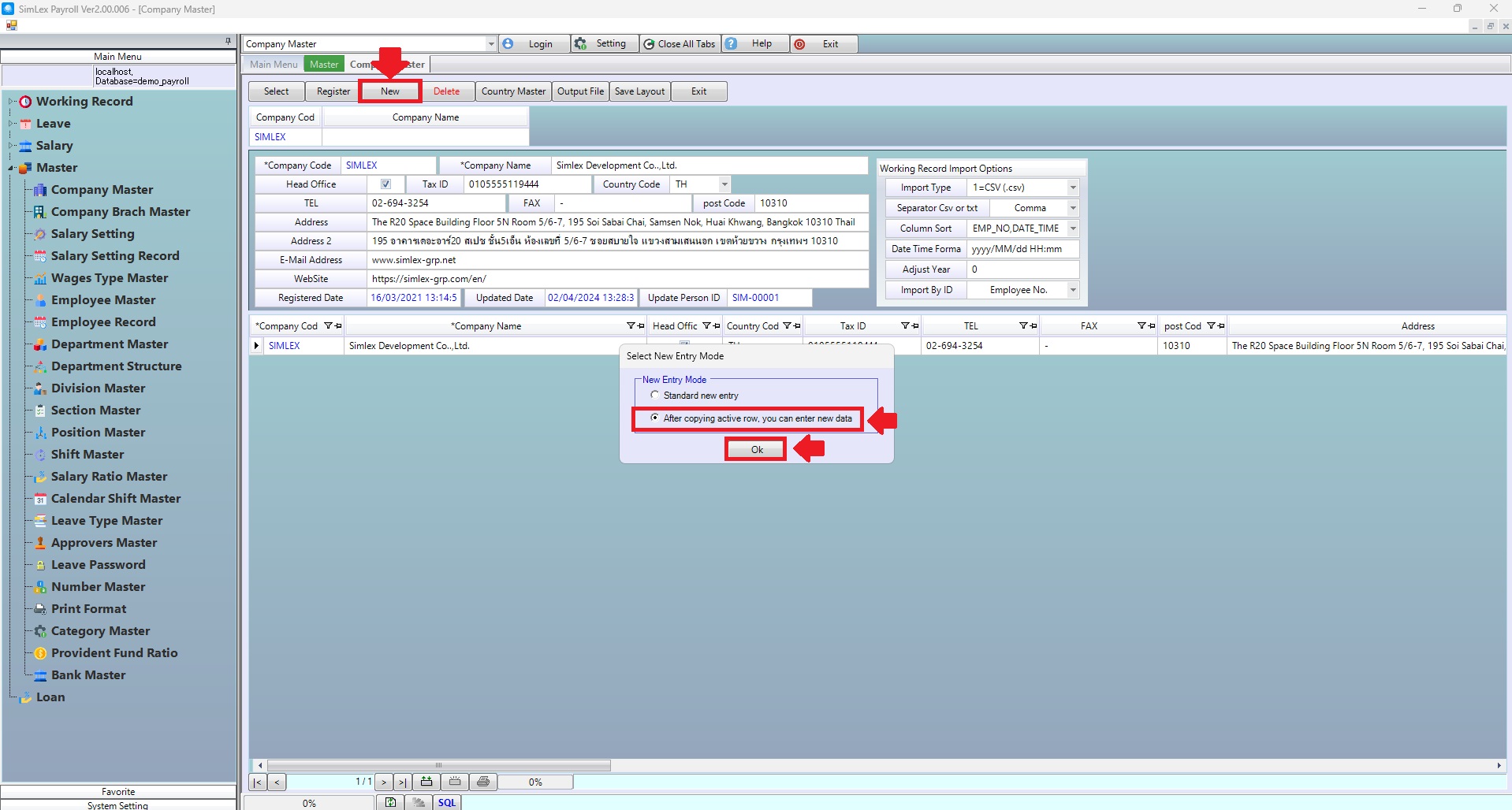
Picture 2 The system displays the information.
3. The system shows details for editing information. When finished <Add>, click then click <Register>.
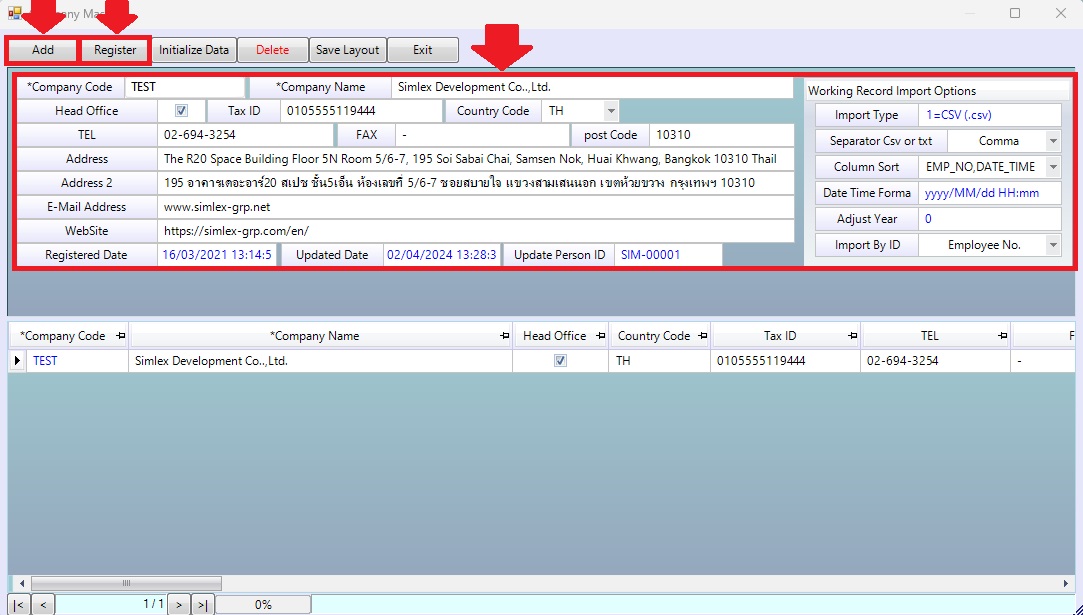
Picture 3 Input data.
4. Close the program and log in again by entering the company code that created the information in the field <Company>. When finished, click <Execute>.
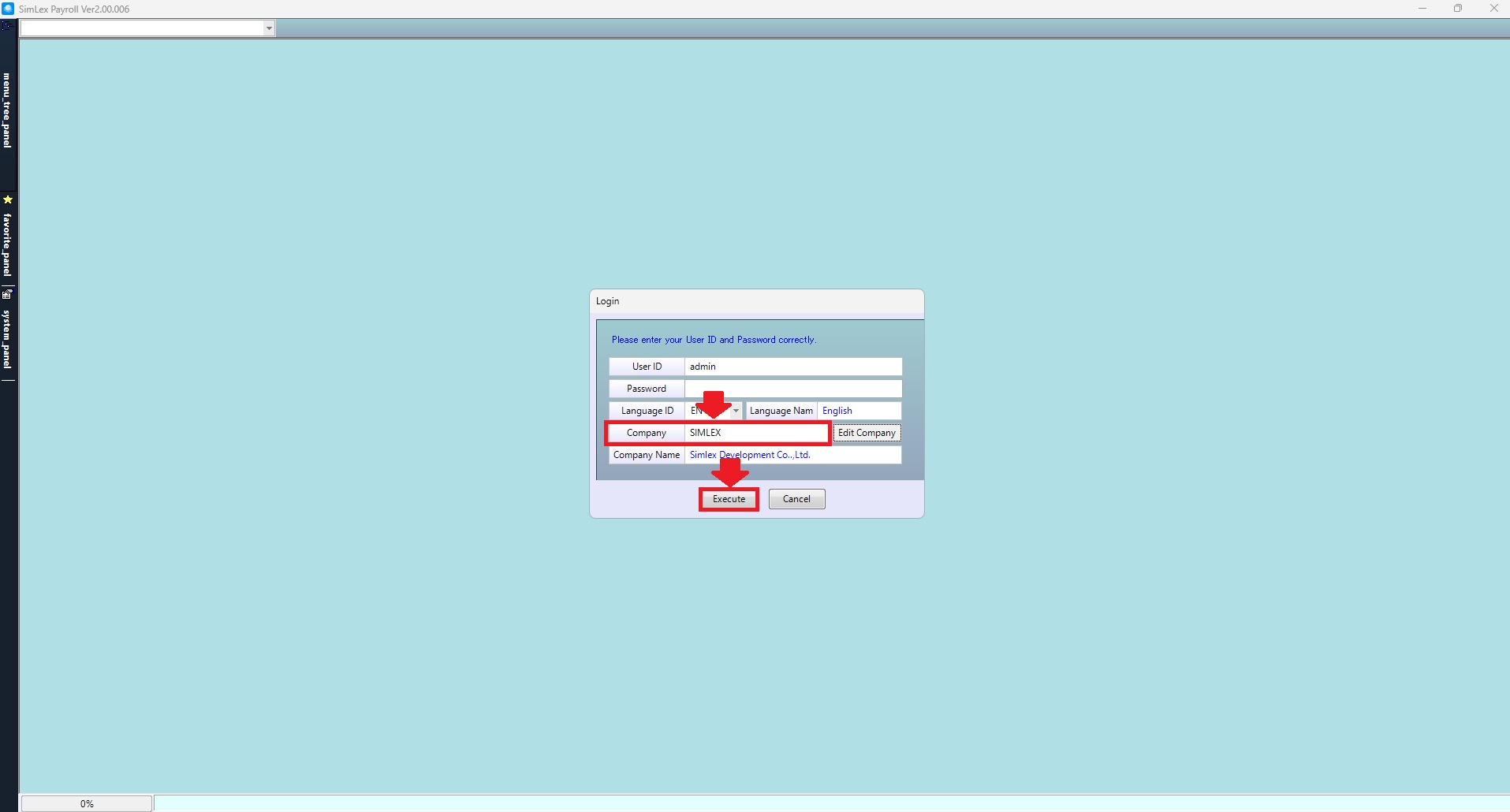
Picture 4 New login.
Country Master
1. Click <Master> from the main menu or double click from the left menu <Master> and then double click on the menu <Company Master> then finished click <Country Master>.
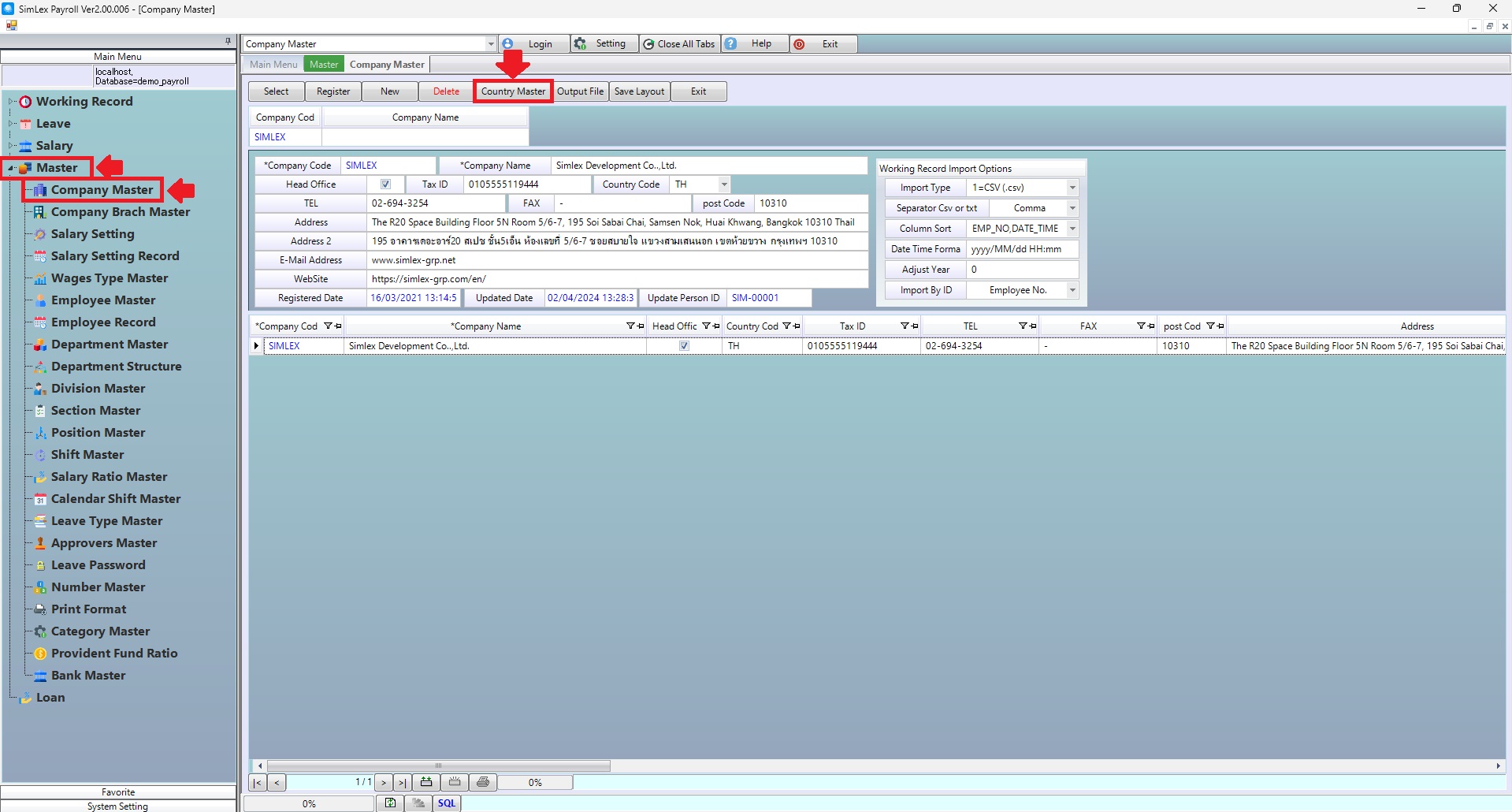
Picture 5 Click menu Country Master.
2. The system will display an information window, then click <New>.
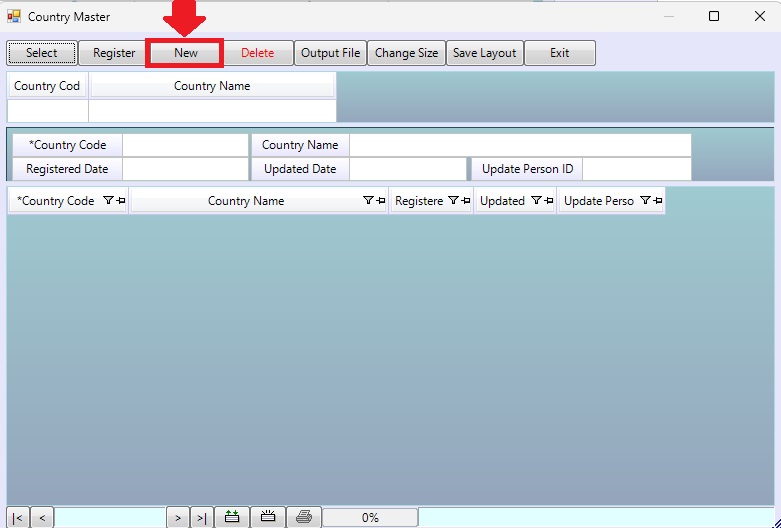
Picture 6 The system displays the information.
Fill in the information completely, then click <Add> then finished click <Register>.
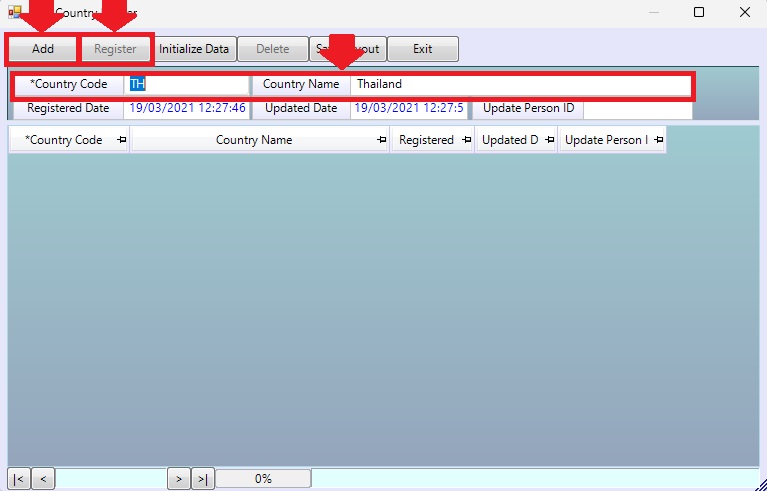
Picture 7 Fill in the information
| Field name Main menu | Search for details of information |
| Company Code | The system auto displays the information. |
| Company Name | The system auto displays the information. |
| Country Code | Enter country code. |
| Country Name | Entry country name. |
| Field name input data | Information input detail |
| Company Code | Enter company code. |
| Company Name | Enter company name. |
| Head Office | Check box to set it as head office, uncheck box to set it not to be head office. |
| Tax ID | Enter tax id. |
| Country Code | Select country code. |
| TEL | Enter tel. |
| FAX | Enter fax. |
| Post Code | Enter post code. |
| Address | Enter address. |
| Address 2 | Enter address 2. |
| E-Mail Address | Enter e-mail address. |
| Web Site | Enter web site. |
| Import Type | Select import type 0=Excel standard, 1=CSV (.csv), 2=Text (.txt). |
| Separator Csv or txt | Select Comma, Pipe, Spacebar, Tab. |
| Column Sort | Enter column sort example DATE=date, TIME=time, EMP_NO=employee id Total data is DATE,TIME EMP_NO. |
| Date Time Format | Enter date time format example yyyy=year, MM=month, dd=date, HH:mm=hours:minutes Total data is yyyy/MM/dd HH:mm. |
| Adjust Year | Set it to “0”. |
| Import By ID | Select the import format based on the employee id (employee code in employee master) and data id (data code in the scanner, which needs to be defined in the employee master). |