Employee Master
To create employee master data, you can create it with the following steps.
1. Click <Master> from the main menu or double click from the left menu <Master> and then double click on the menu <Employee Master>.
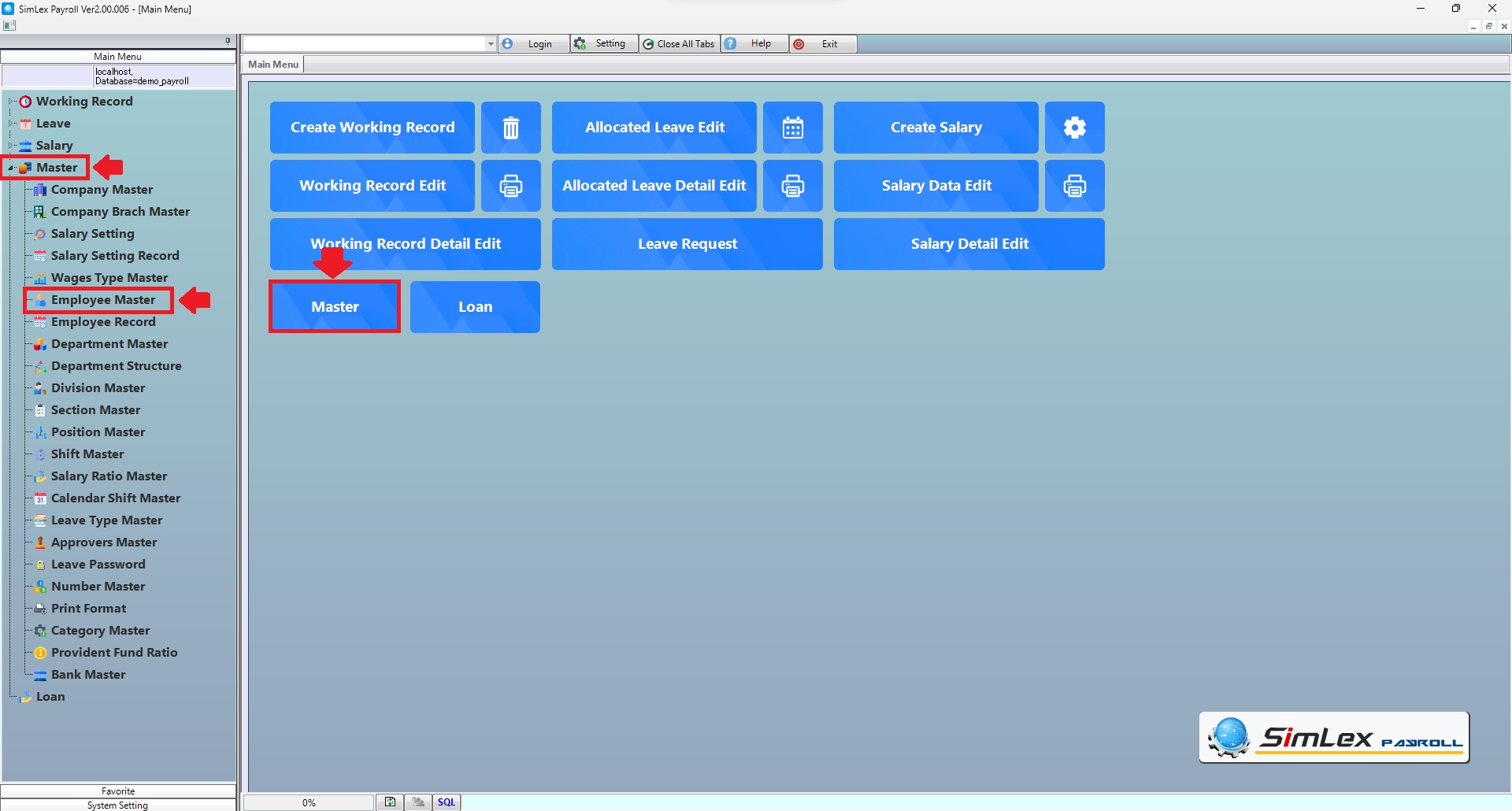
Picture 1 Click menu Employee Master.
2. The system will display an information window. Click then <New> then click <Standard new entry> then finished click <OK>.
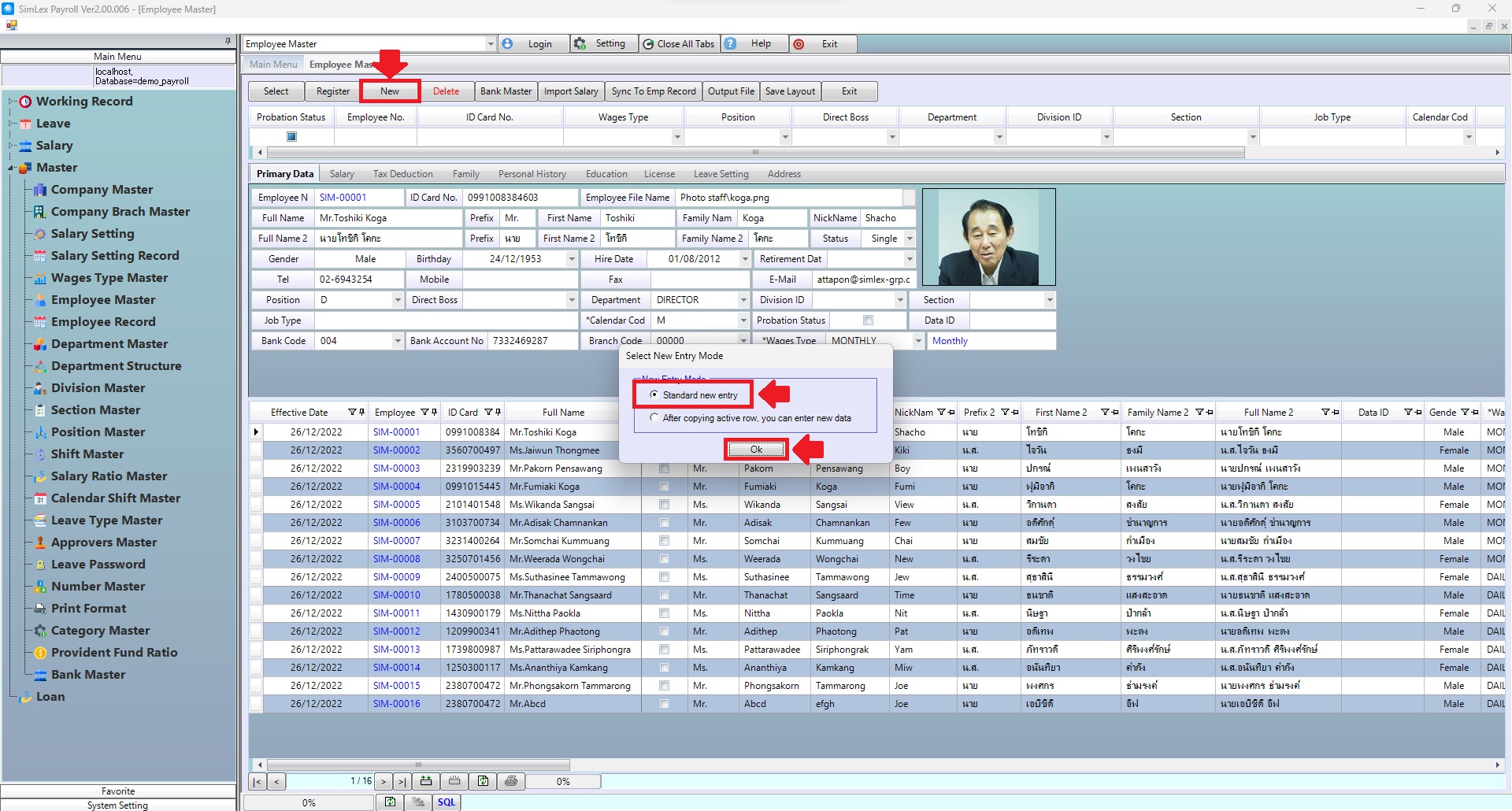
Picture 2 Standard new entry.
When the system displays the information, click on the Sheet <Primary Data> that you want to fill in information. When finished filling in information in each sheet, click <Add> and edit the date in the fields <Effective Date> to allow data to be processed from the date entered onwards. And when the information is complete, click <Register>.
2.1 Sheet <Primary Data>. 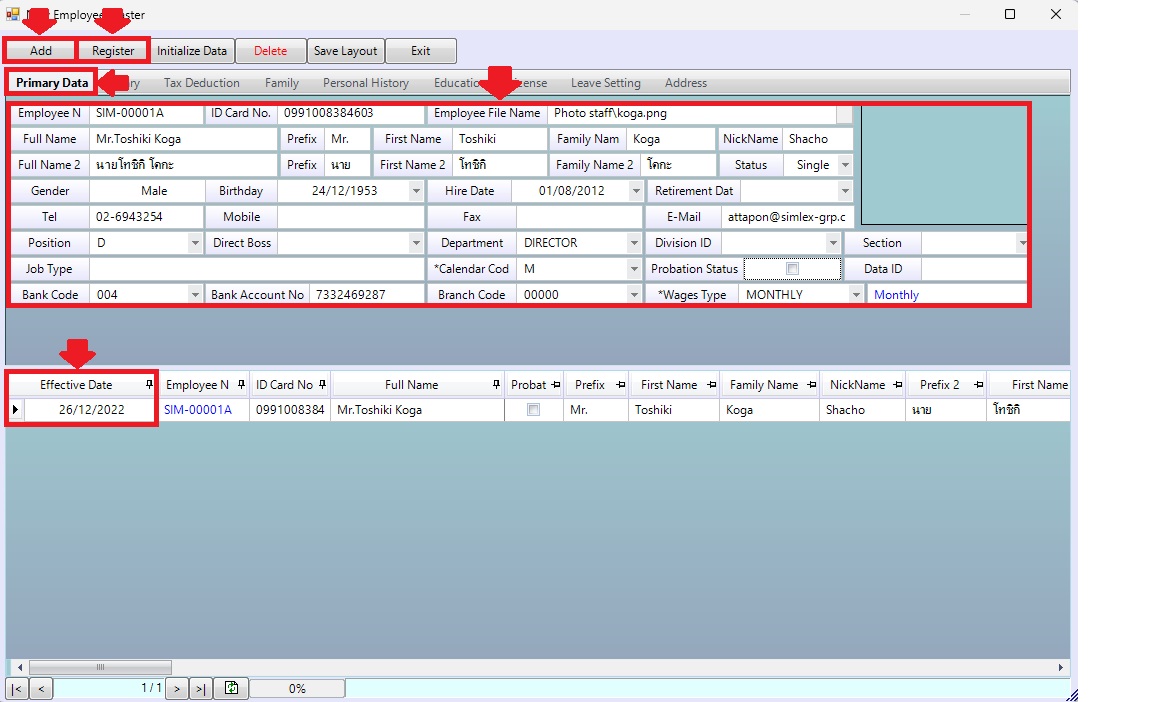
Picture 3 Sheet <Primary Data>.
| Field name input data | Information input detail |
| Employee No | Enter employee no. |
| ID Card No. | Enter id card no. |
| Employee File Name | Select employee file name. |
| Full Name | Enter full name. |
| Prefix | Enter prefix. |
| First Name | Enter first name. |
| Family Name | Enter family name. |
| Nick Name | Enter nick name. |
| Full Name 2 | Enter full name 2 (User for submit Tax and SSO). |
| Prefix | Enter prefix (User for submit Tax and SSO). |
| First Name 2 | Enter first name 2 (User for submit Tax and SSO). |
| Family Name 2 | Enter family name 2 (User for submit Tax and SSO). |
| Status | Select status Single, Married, Widowed, Divorced, Separated. |
| Gender | Select gender. |
| Birthday | Select birthday. |
| Hire Date | Select hire date. |
| Retirement Date | Select retirement date. |
| Tel | Enter tel. |
| Mobile | Enter mobile. |
| Fax | Enter fax. |
| Enter e-mail. | |
| Position | Select position. |
| Direct Boss | Select direct boss. |
| Department | Select department. |
| Division ID | Select division id. |
| Section | Select section. |
| Job Type | Enter job type. |
| Calendar Code | Select calendar code. |
| Probation Status | Check box for probation status. |
| Data ID | Enter data id. |
| Bank Code | Select bank code. |
| Bank Account No | Enter bank account no. |
| Branch Code | Select branch code. |
| Wages Type | Select wages type. |
2.2 Sheet <Salary>.
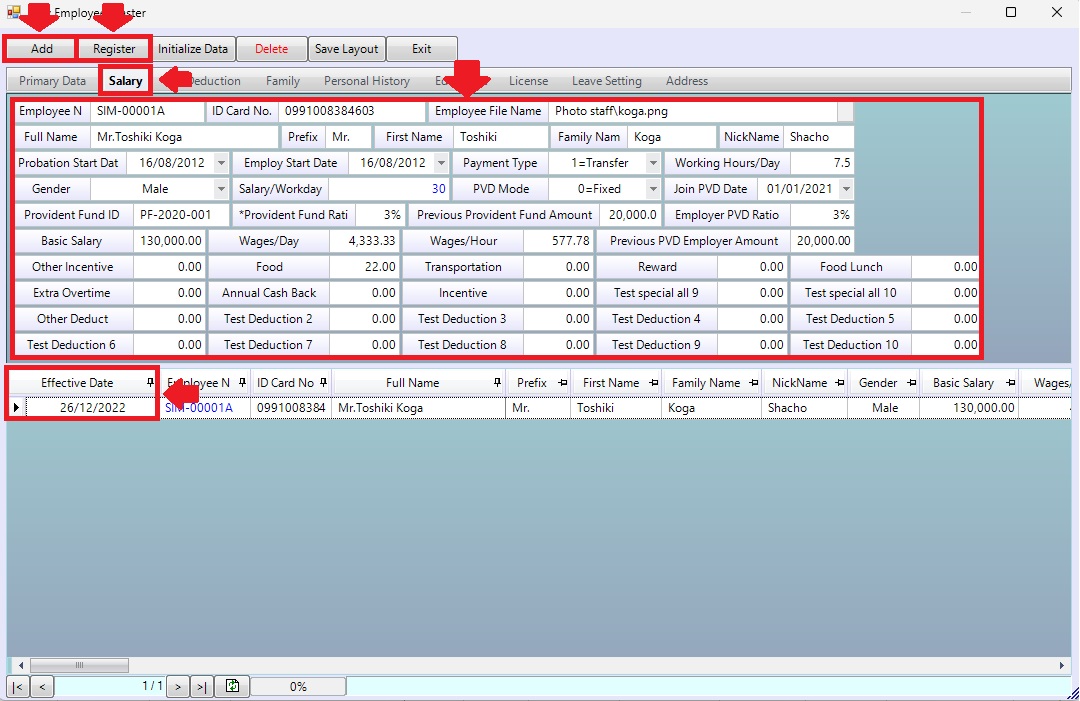
Picture 4 Sheet <Salary>.
| Field name input data | Information input detail |
| Probation Start Date | Select probation start date. |
| Employ Start Date | Select employ start date. |
| Payment Type | Select payment type 0=Cash, 1=Transfer, 3=Cheque. |
| Working Hours/Day | Enter working hours/day. |
| Gender | Select gender Male, Female, Other. |
| PVD Mode | Select PVD mode 0=Fixed, 1=Auto |
| Join PVD Date | Select join PVD date. |
| Provident Fund ID | Enter provident fund id. |
| Provident Fund Ratio | Enter provident fund ratio (Company) |
| Previous Provident Fund Amount | Enter previous provident fund amount. |
| Employer PVD Ratio | Enter provident fund ratio (Employee) |
| Basic Salary | Enter basic salary. |
| Wages/Day | System auto display. |
| Wages/Hour | System auto display. |
| Previous PVD Employer Amount | Enter previous PVD employer amount. |
| Other incentive | Enter special allowance amount. |
| Food | Enter special allowance amount. |
| Transportation | Enter special allowance amount. |
| Reward | Enter special allowance amount. |
| Food Lunch | Enter special allowance amount. |
| Extra Overtime | Enter special allowance amount. |
| Annual Cash Back | Enter special allowance amount. |
| Incentive | Enter special allowance amount. |
| Test special all 9 – 10 | Enter special allowance 9-10 amount. |
| Other Deduct | Enter deduction amount. |
| Test Deduction 2 – 10 | Enter deduction 2-10 amount. |
2.3 Sheet <Tax Deduction>.
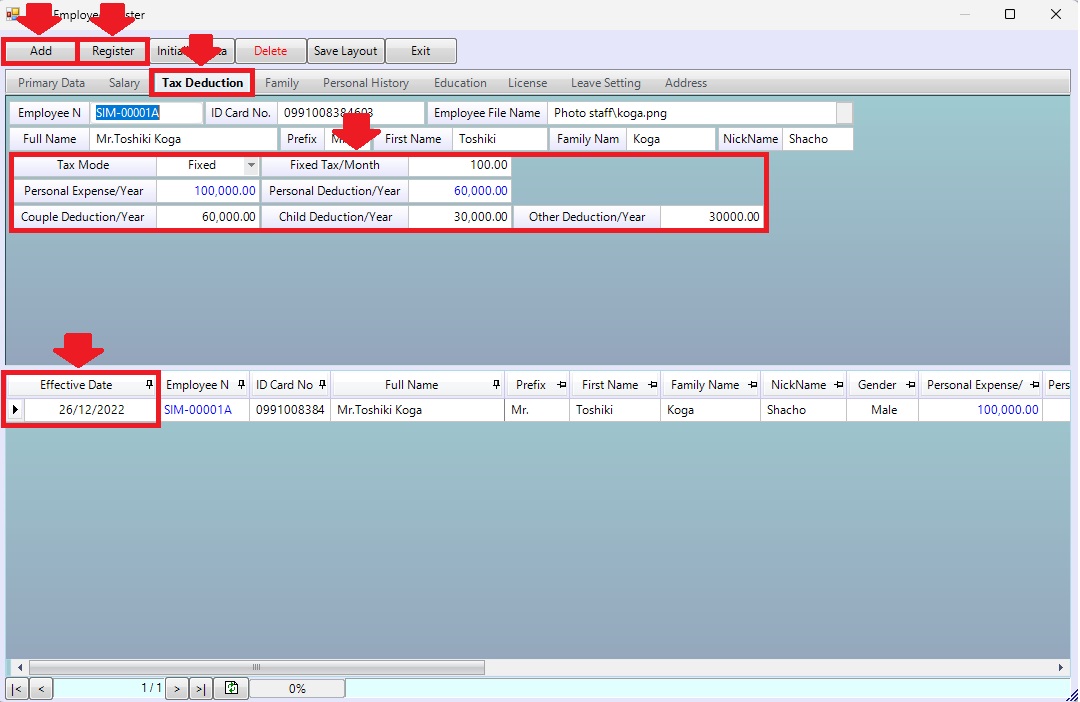
Picture 5 Sheet <Tax Deduction>.
| Field name input data | Information input detail |
| Tax Mode | Select Tax Mode Fixed(Manual tax amount/Mount), Auto(คำนวณตามอัตราก้าวหน้า) |
| Fixed Tax/Month | กำหนดจำนวนเงินยอดภาษีเองต่อเดือน |
| Personal Expense/Year | กำหนดจำนวนเงินลดหย่อนค่าใช้จ่ายส่วนบุคคล/ปี |
| Personal Deduction/Year | กำหนดจำนวนเงินลดหย่อนส่วนบุคคล/ปี |
| Couple Deduction/Year | กำหนดจำนวนเงินลดหย่อนภรรยา/ปี |
| Child Deduction/Year | กำหนดจำนวนเงินลดหย่อนบุตร/ปี |
| Other Deduction/Year | กำหนดจำนวนเงินลดหย่อนอื่นๆ/ปี |
| Field name Main menu | Search for details of information |
| Wages Code | Enter wages code. |
| Field name input data | Information input detail |
| Wages Code | Set wages code. |
| Wages Name | Set wages name. |
| Calculation Type | Select calculation wages type 0=Monthly, 1=Daily. |
| Fix flag | System auto check box. |
| Salary/Workday | System auto display data. |
| This Year | Set start year. |
| This Month | Set start month. |
| Cal Paid Holiday | Check box for calculate paid holiday. |
| Start Days | Set start day salary. |
| Close Days | Set close day salary. |
| Pay Salary Day | Set pays salary day, incase end of month it will be scheduled to be paid at the end of each month. |