Allocated Leave Detail Edit
Allocated Leave Detail Edit Be able to record the date and time of employees’ leave. Allocated leave detail edit, the steps are as follows.
1. Click <Allocated Leave Detail Edit> from the main menu or double click from the left menu. <Leave> double click menu. <Allocated Leave Detail Edit>
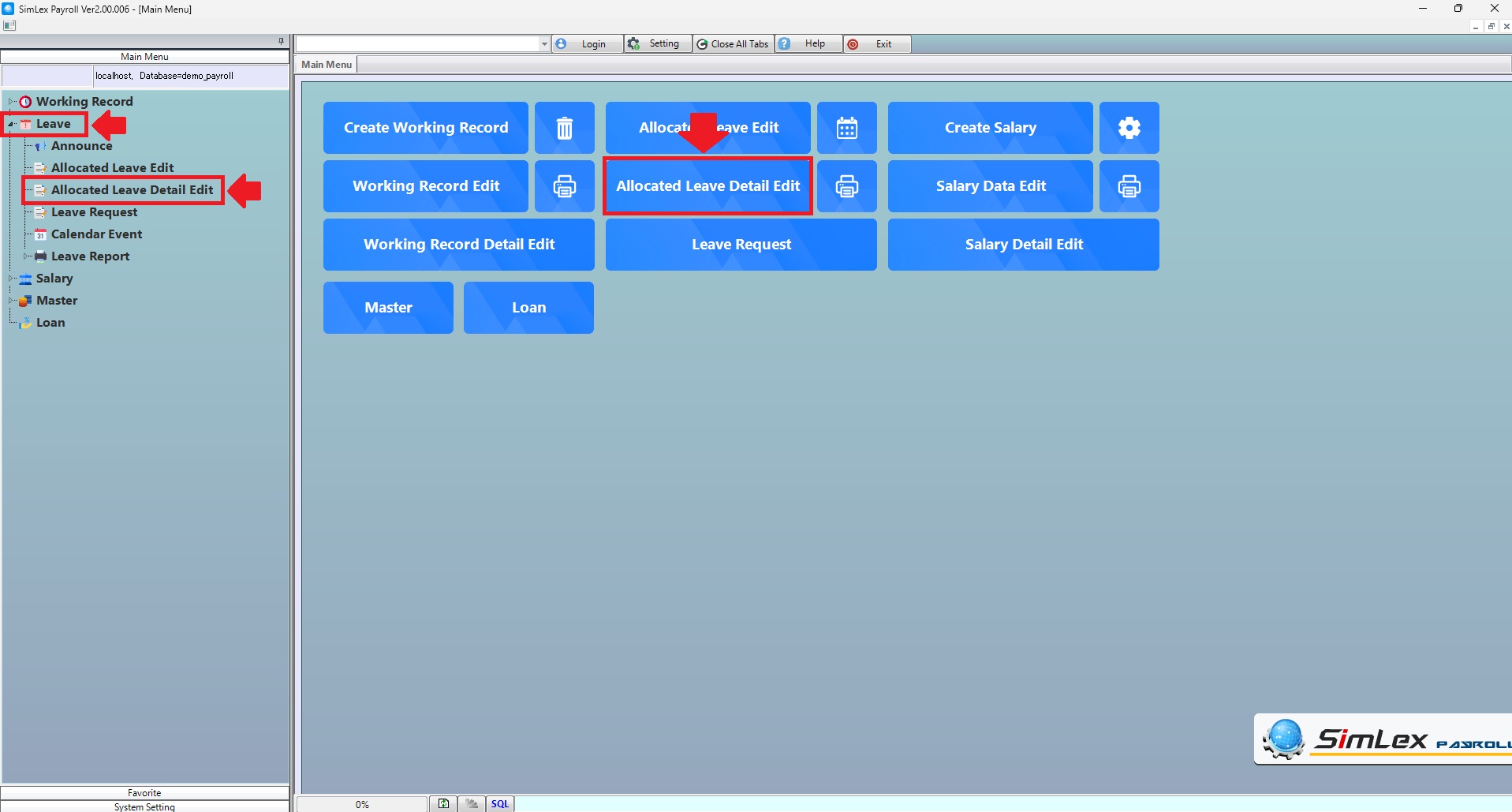
Picture 1 Click menu allocated leave detail edit.
2. The system displays information. You can select an item to delete leave type information. Click <Delete> or add leave type. click<Add Leave Type> and then click< Register>
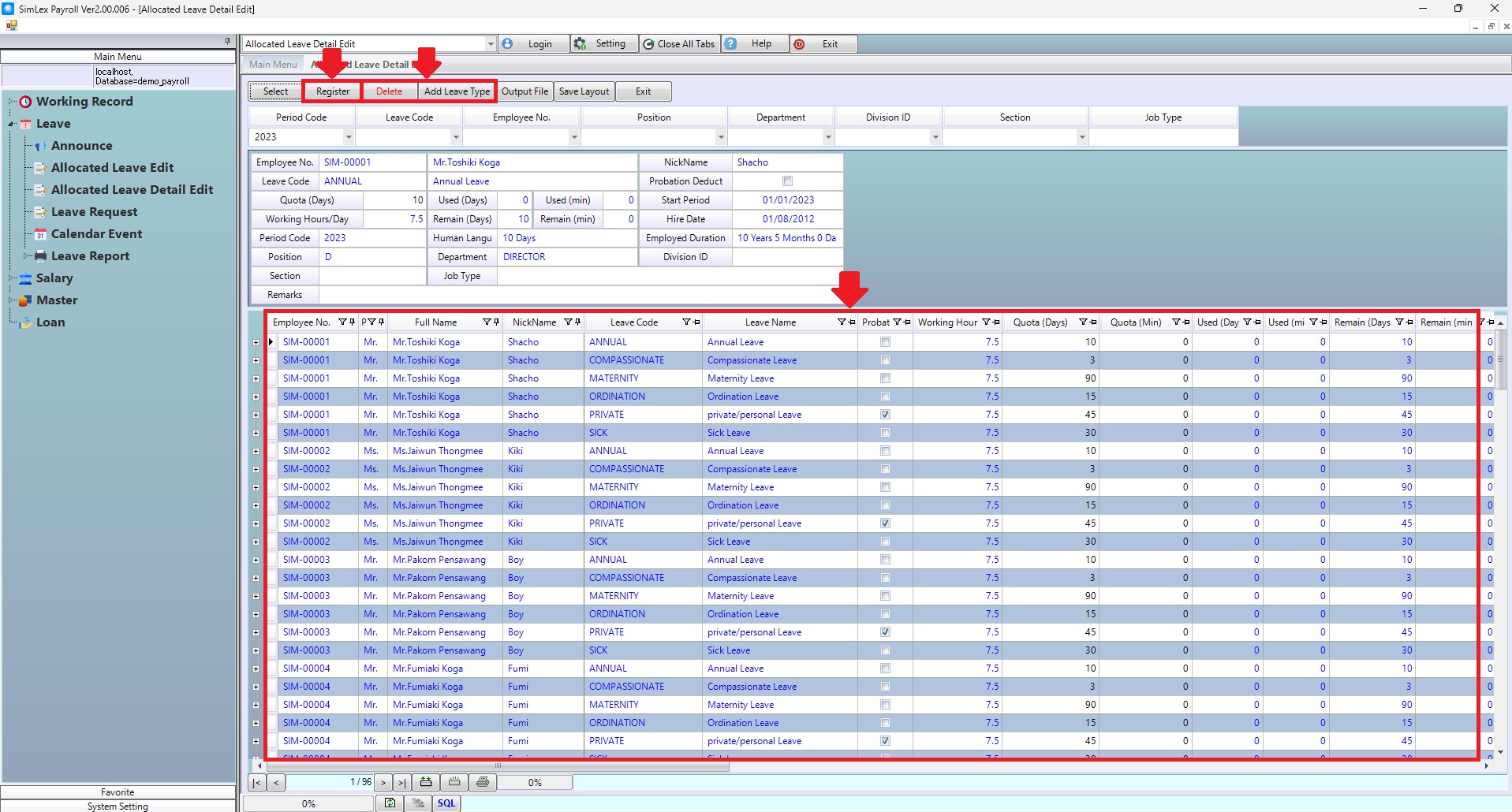
Picture 2 The system displays the information to edit the information.
In the case of adding a type of leave for employees, click <Add Leave Type>, then fill in the information and click <Add> . When finished, click <Register>.
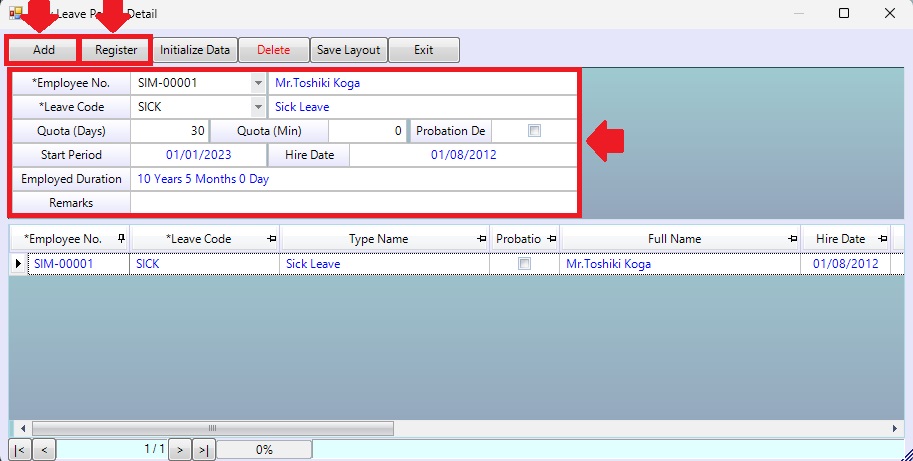
Picture 3 Add Leave Type.
| Field name Main menu | Search for details of information |
| Period Code | Select Period Code |
| Leave Code | Select Leave Code |
| Employee No. | Select Employee No. |
| Position | Select Position Code |
| Department | Select Department Code |
| Division ID | Select Division ID |
| Section | Select Section Code |
| Job Type | Select Job Type |
| Field name input data | Information input detail |
| Probation Deduct | Check to box for probation deduct. |
| Quota (Days) | Enter the leave days that will be given to employees for the entire year. (Enter the number of days) |
| Quota (Min) | Enter the leave minutes that will be given to employees for the entire year. (Enter the number of minutes) |
| Employee No. | Select employee No. |
| Leave Code | Select leave code. |
| Remarks | Enter remark. |