Cancel Approve/Reject Leave Request
When to cancel approval/rejection of leave (Must be an authorized person to revoke approval/rejection only) This can be done with the following steps.
1. Click <Leave Request> from the main menu or double click from the left menu <Leave>, then <Leave Request> double click on the menu <Cancel Approve/Reject Leave Request>.
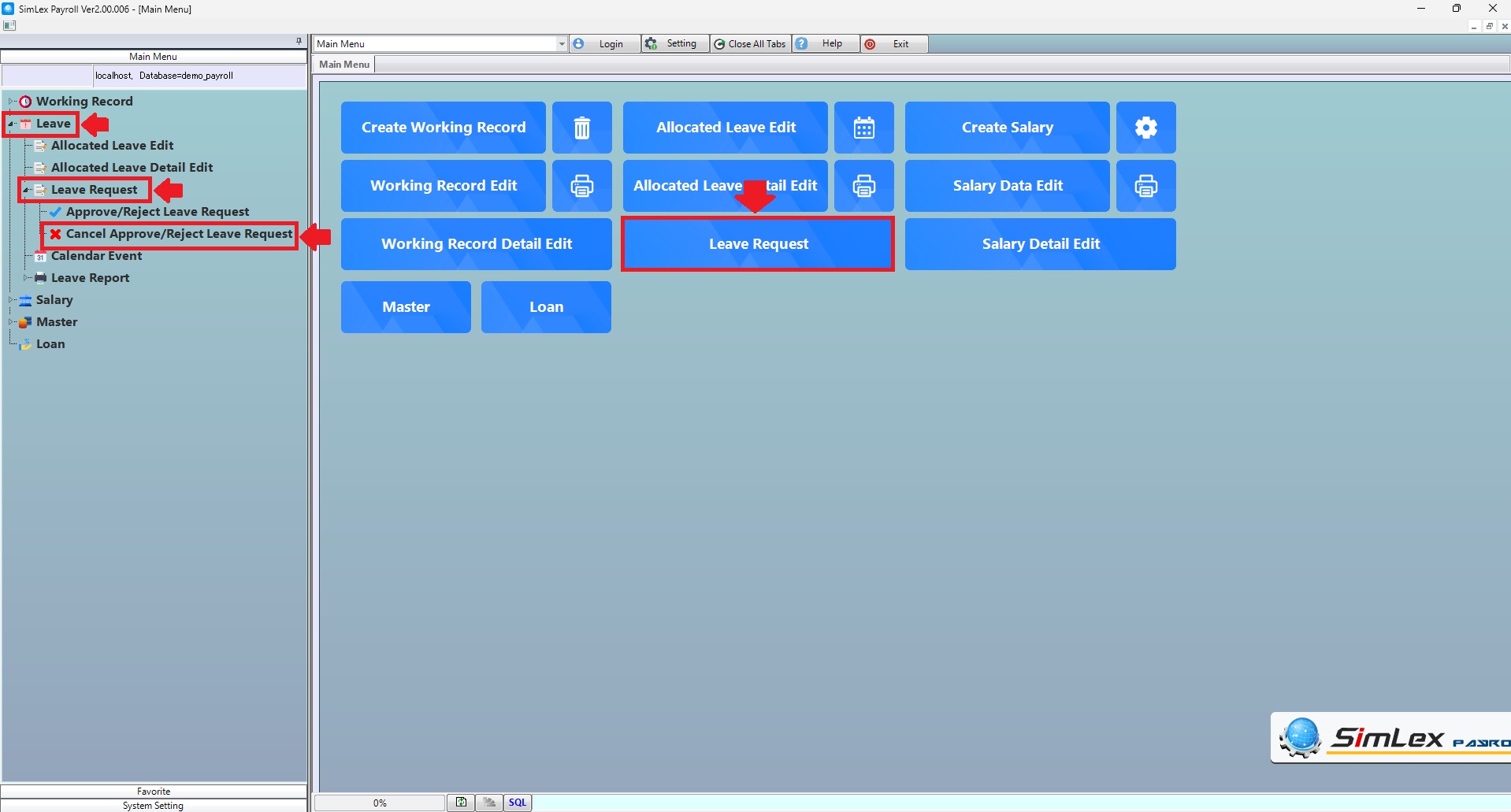
Picture 1 Menu Cancel Approve/Reject Leave Request.
The system displays information, then click<Cancel Approve>.
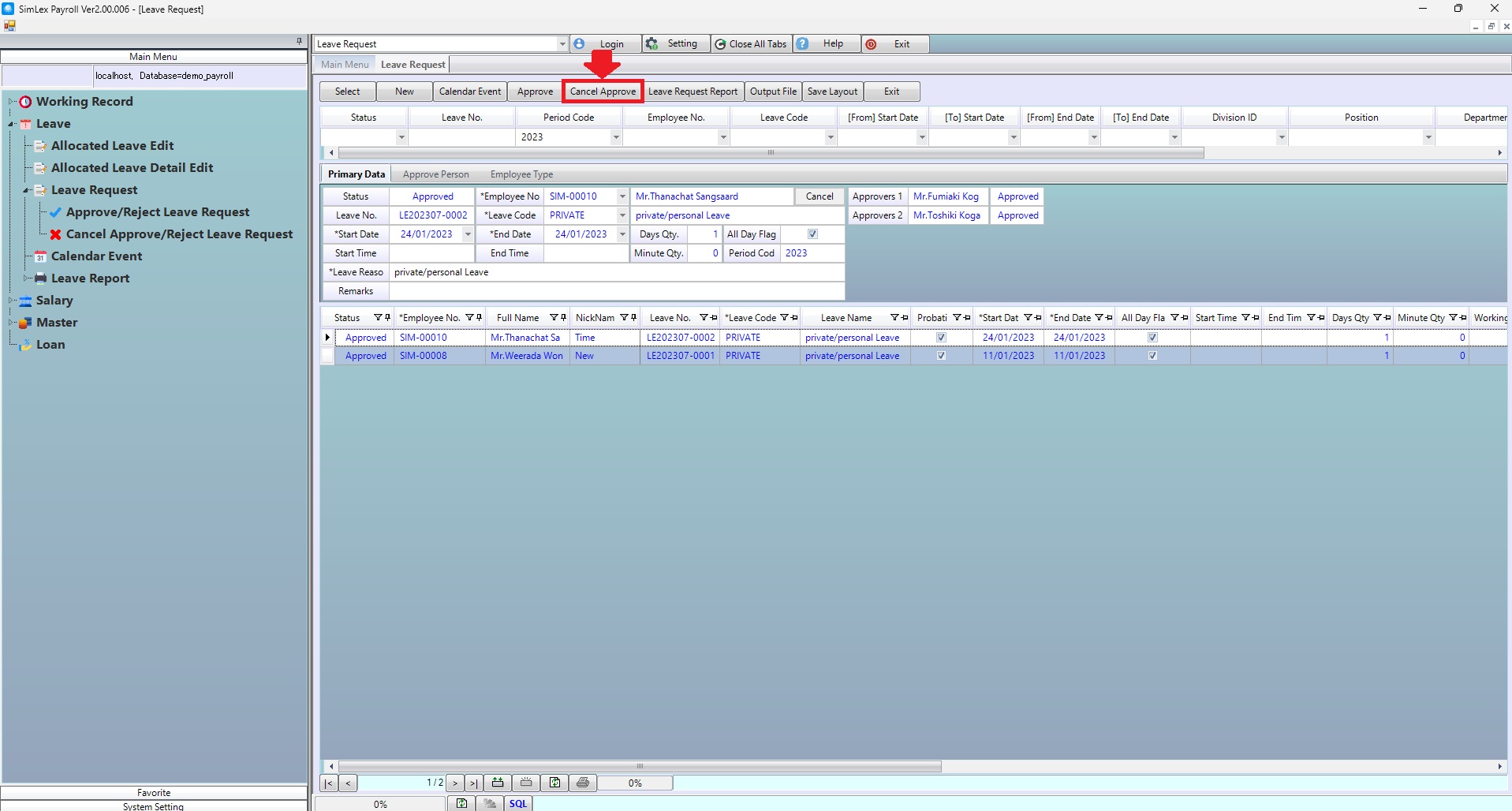
Picture 2 The system displays the information.
2. Check leave information Then check the box <Select flag>. When finished, click <Register>.
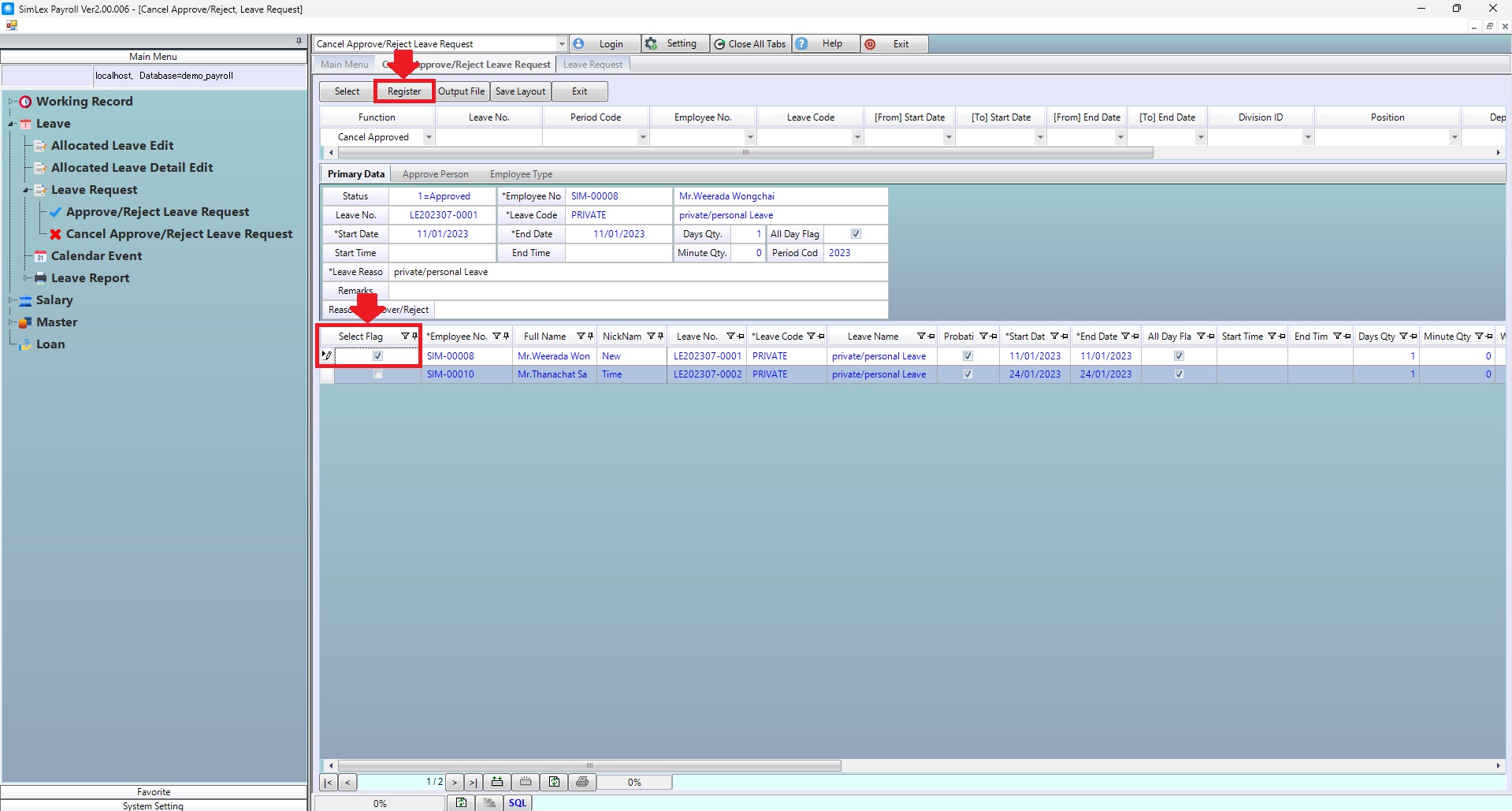
Picture 3 Cancel Approve/Reject Leave Request.
| Field name Main menu | Search for details of information |
| Function | Select Cancel Approved, Cancel Rejected. |
| Leave No. | Enter leave no. |
| Period Code | Select period code. |
| Employee No. | Select employee no. |
| Leave Code | Select leave code. |
| [From] Start date | Select from start date. |
| [To] Start date | Select to start date. |
| [From] End date | Select from end date. |
| [To] End date | Select to end date. |
| Division ID | Select division id. |
| Position | Select position. |
| Department | Select department. |
| Section | Select section. |
| job Type | Enter job type. |
| Apply Flag | Enter apply flag (0,1). |