PND.1A
When you want to see details or print a withholding tax and cover PND.1A to submit to the Revenue Department in paper form, You can choose to view reports as follows.
1. Click <Icon Printer> from the main menu or double click from the left menu <Salary>, then double click on the menu<Salary Report>. The system will display 7 submenus, then click <PND.1A>.
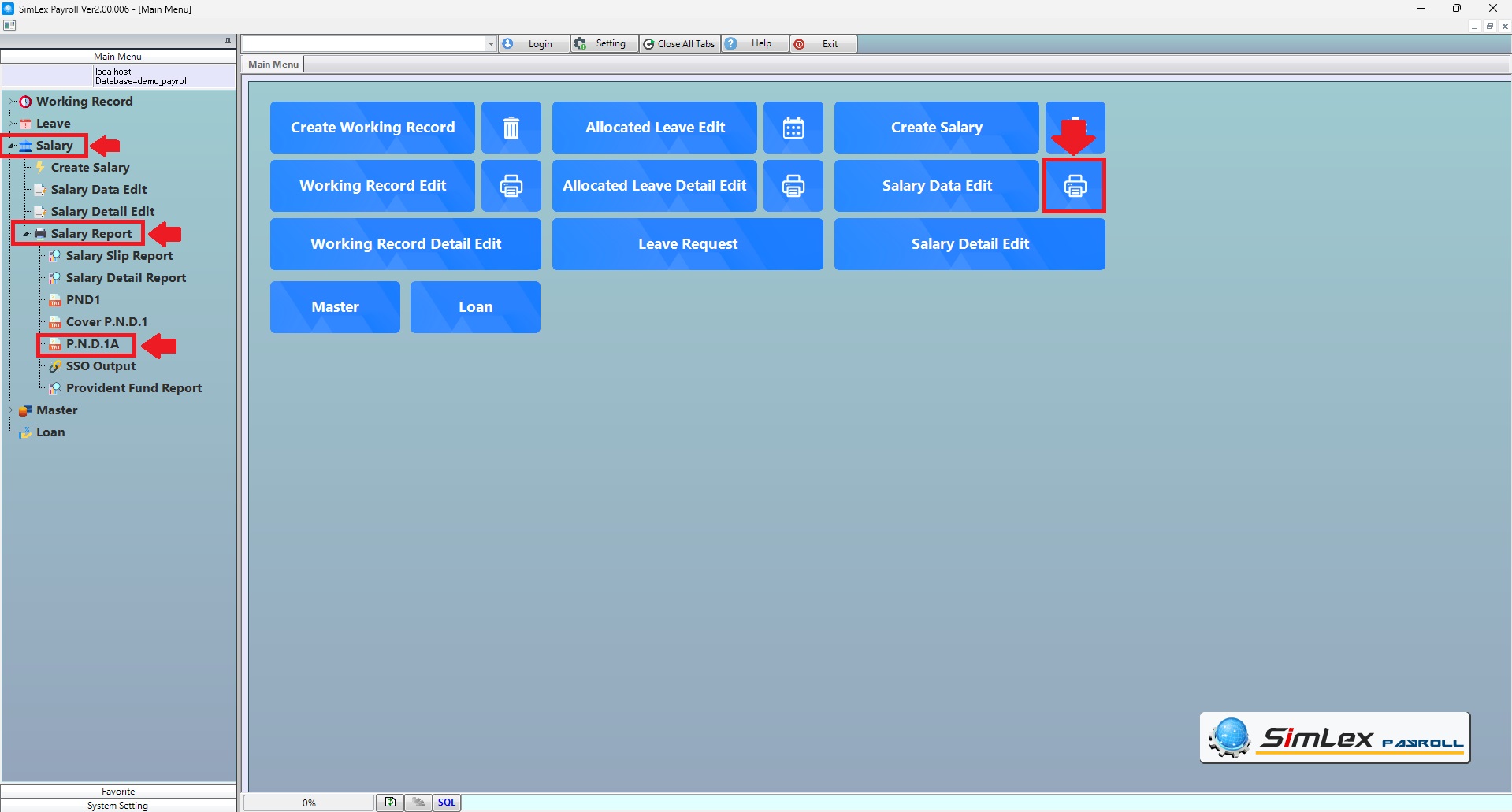
Picture 1 Click Menu PND.1A.
2. Click <Create data>.
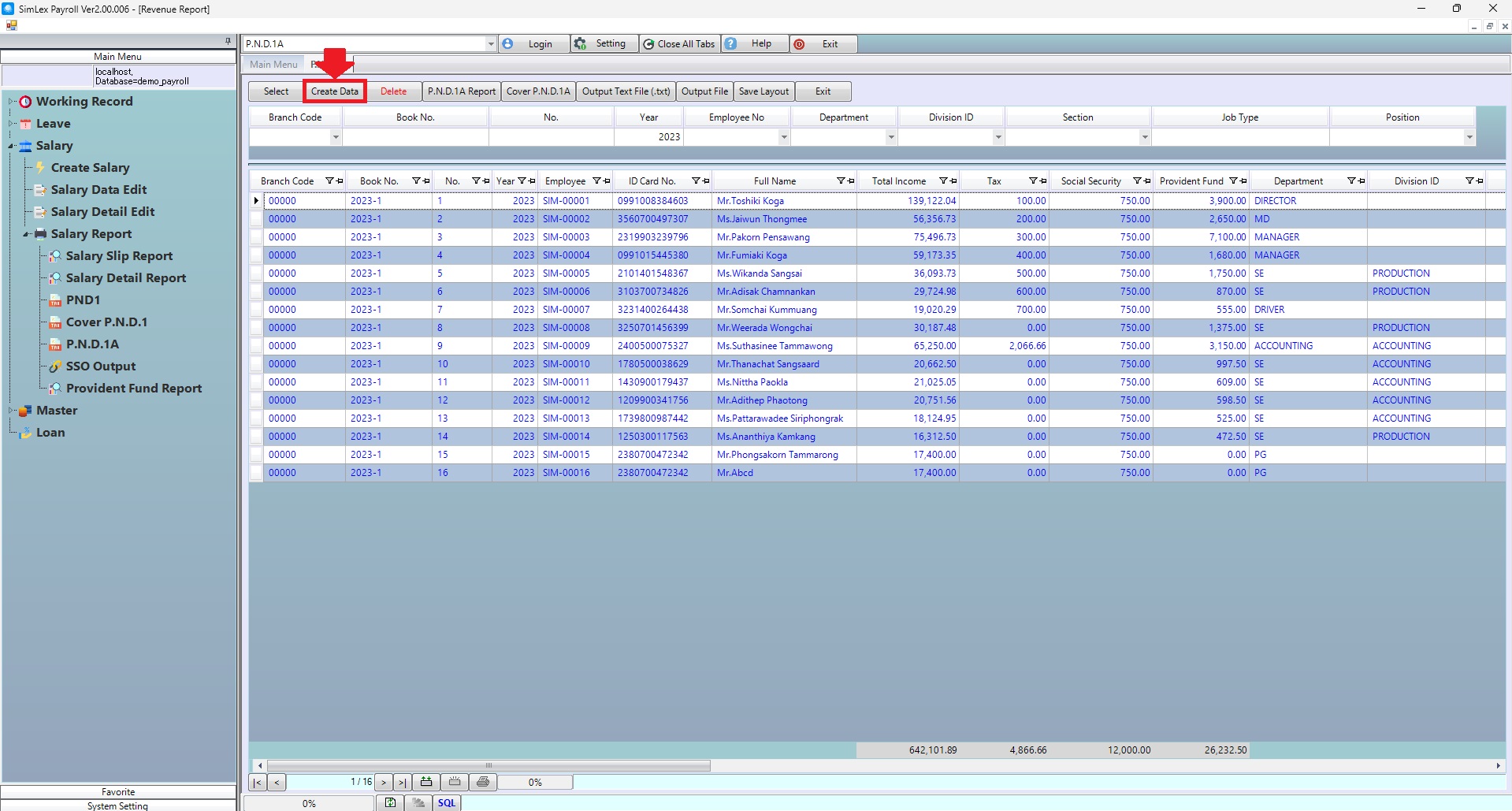
Picture 2 Create data.
Enter the year for which you want to create data. Then click <Select>. The system will display information
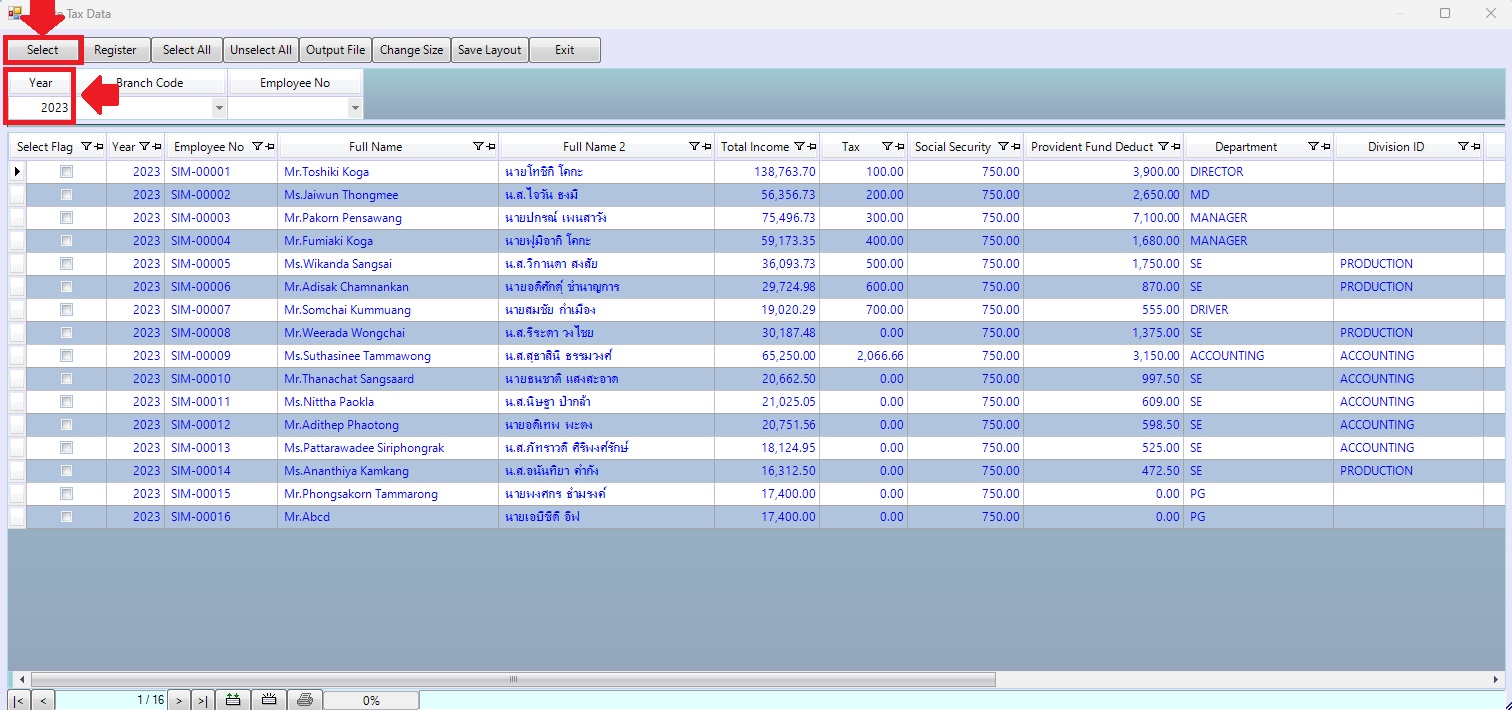
Picture 3 The system will display information.
3. Click to select the item you want to create <Select> When finished click <Register>.
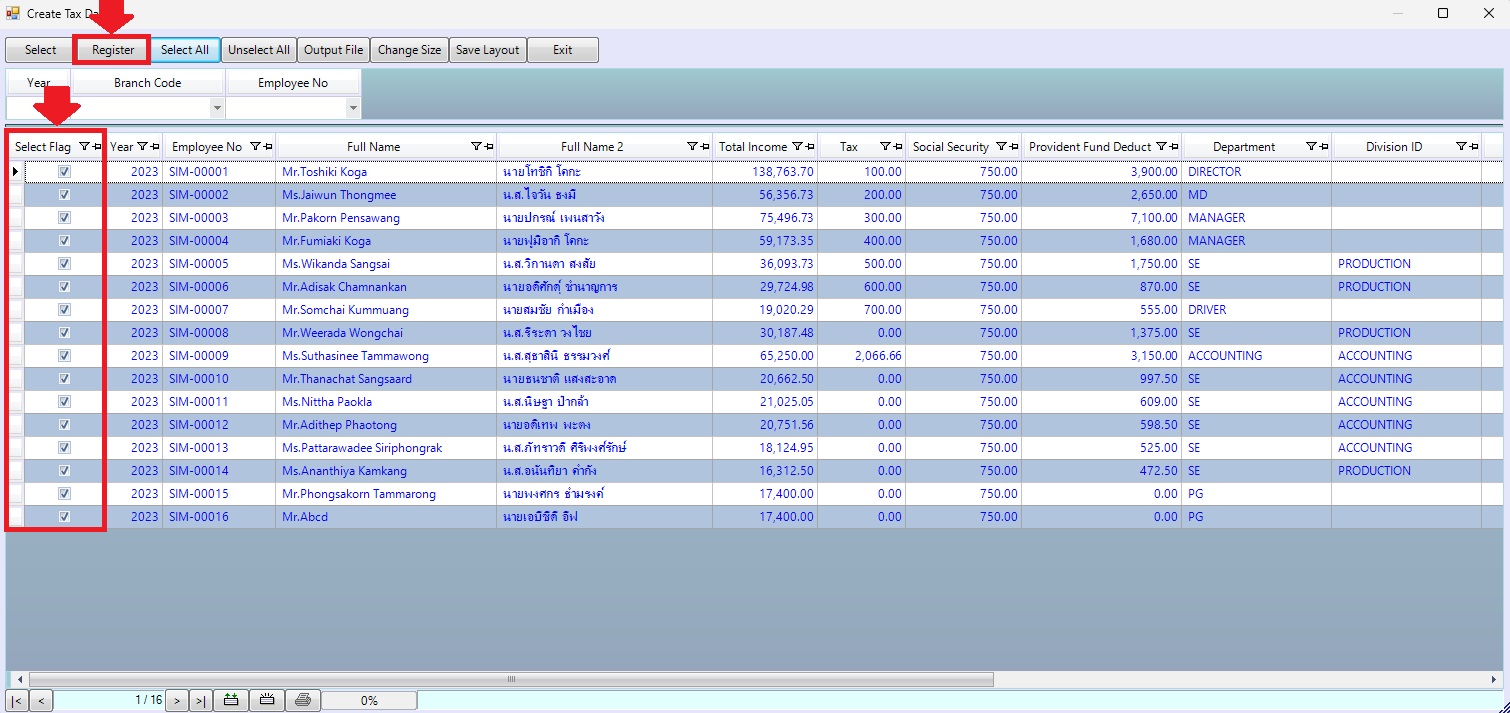
Picture 4 Select information.
4. The system displays information on the main menu to print a withholding tax (50 bis) click <PND.1A Report> , then click <Output Data(O)>.
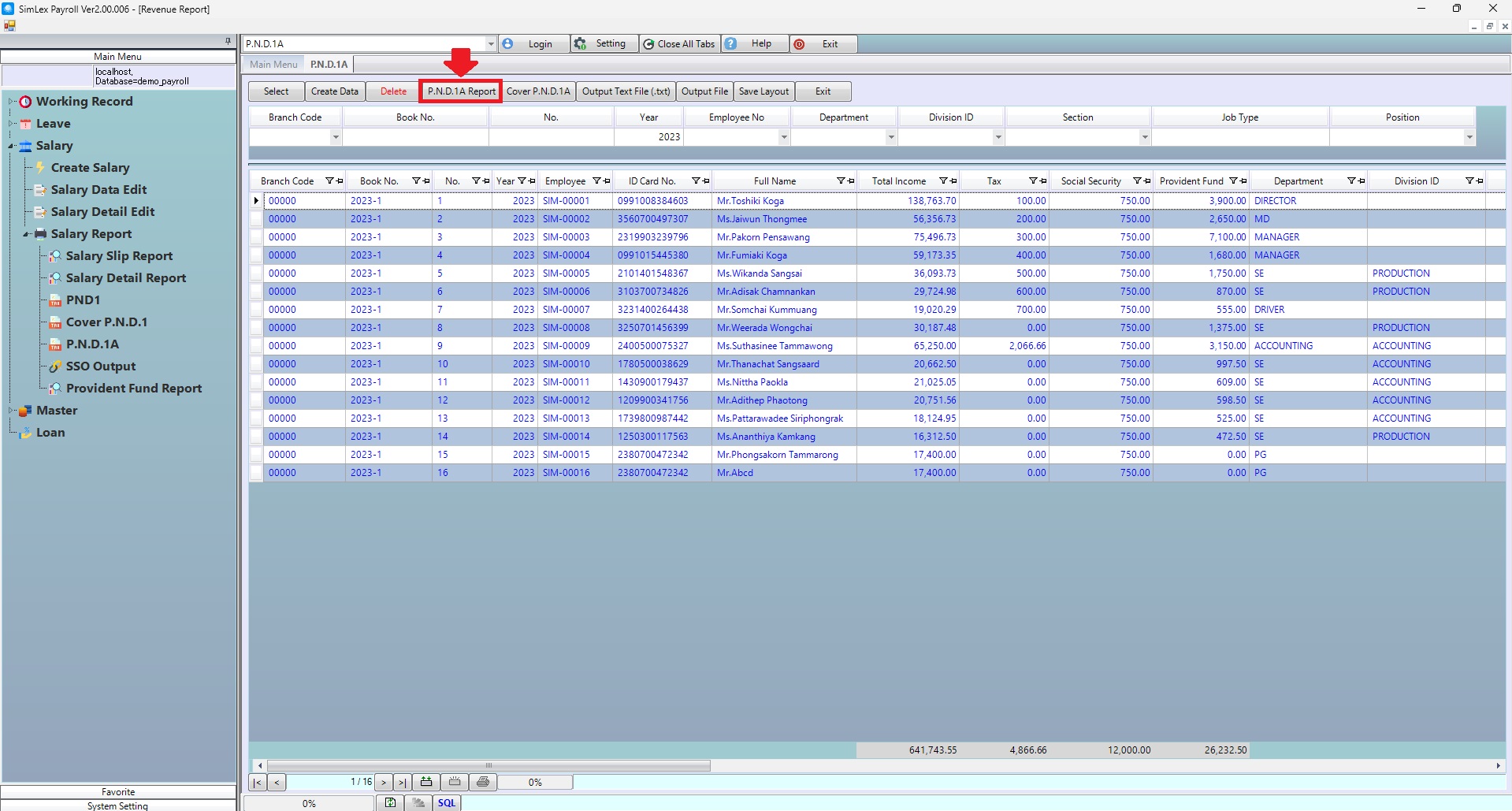
Picture 5 The system displays information.
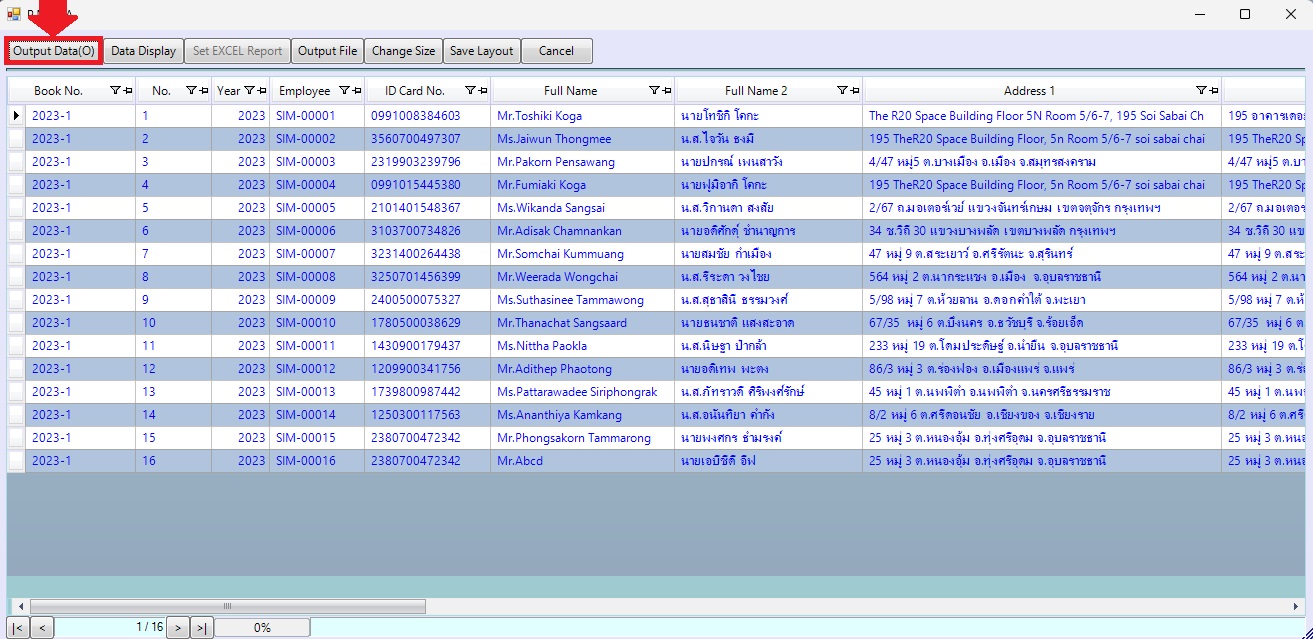
Picture 6 Output Withholding tax (50 bis).
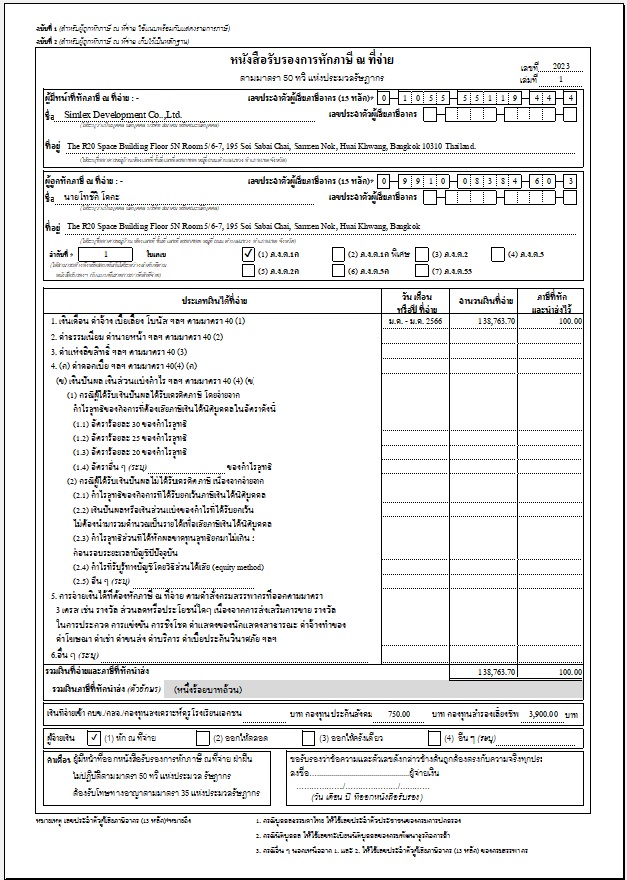
Picture 7 Withholding tax (50 bis) report.
When you want to print the form cover PND. 1A click <Cover PND.1A>.
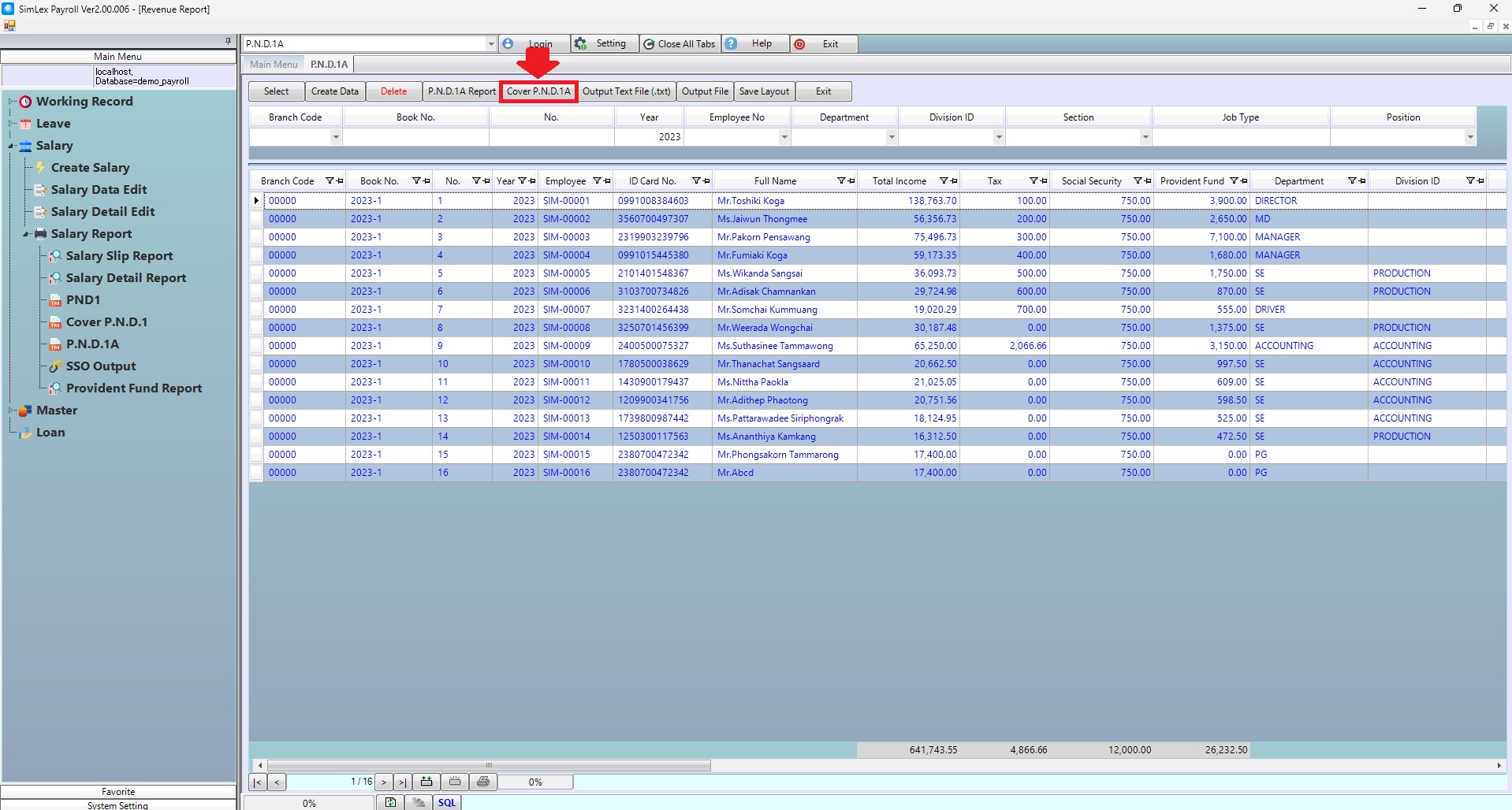
Picture 8 The system displays information.
Fill in the year you want to print in box <Year>, then click <Data Display>. When finished click <Output Data(O)>.
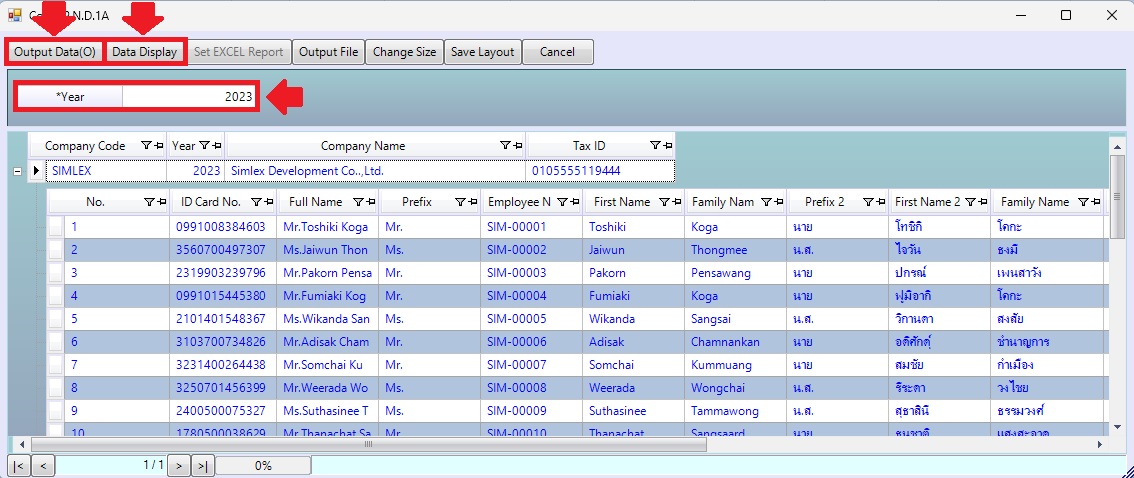
Picture 9 Output cover PND. 1A.
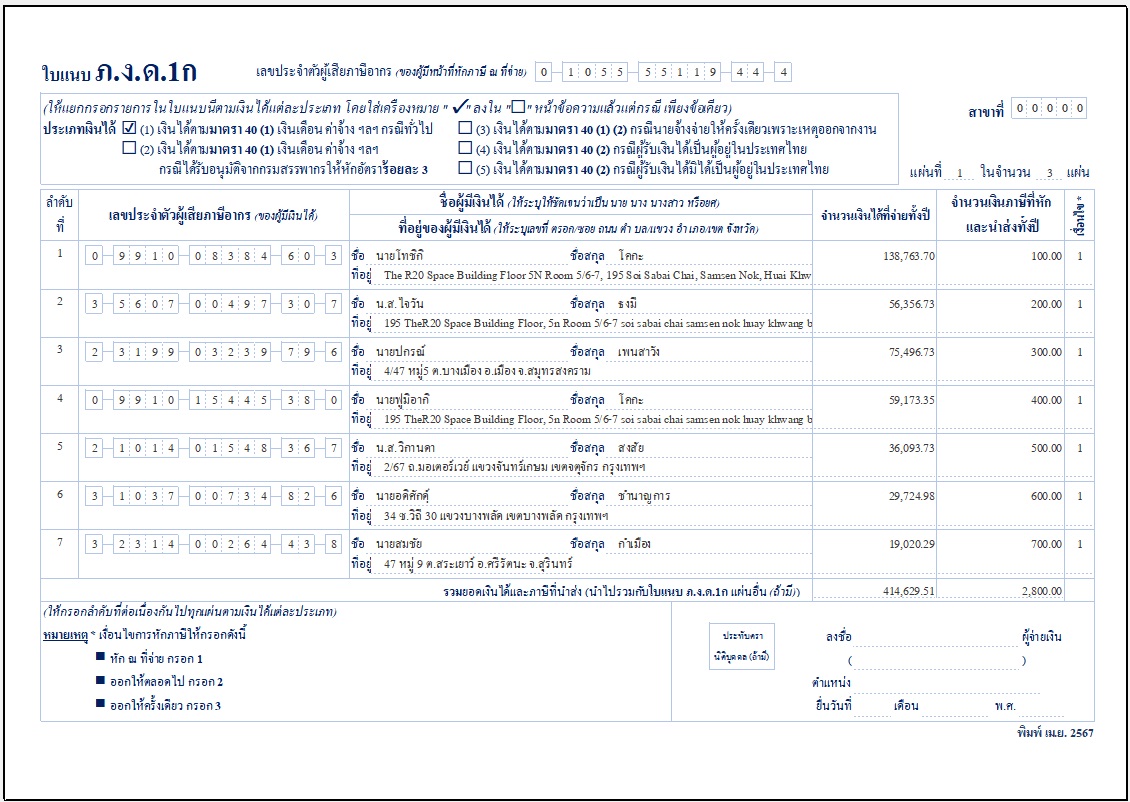
Picture 10 Cover PND.1A
Output Text File (.txt)
when filing taxes online. The system can create files to take to the next step in tax filing. The method is as follows.
1. Enter the year of tax filing, then click<Select> to display the information, then click <Output text file (.txt)>.
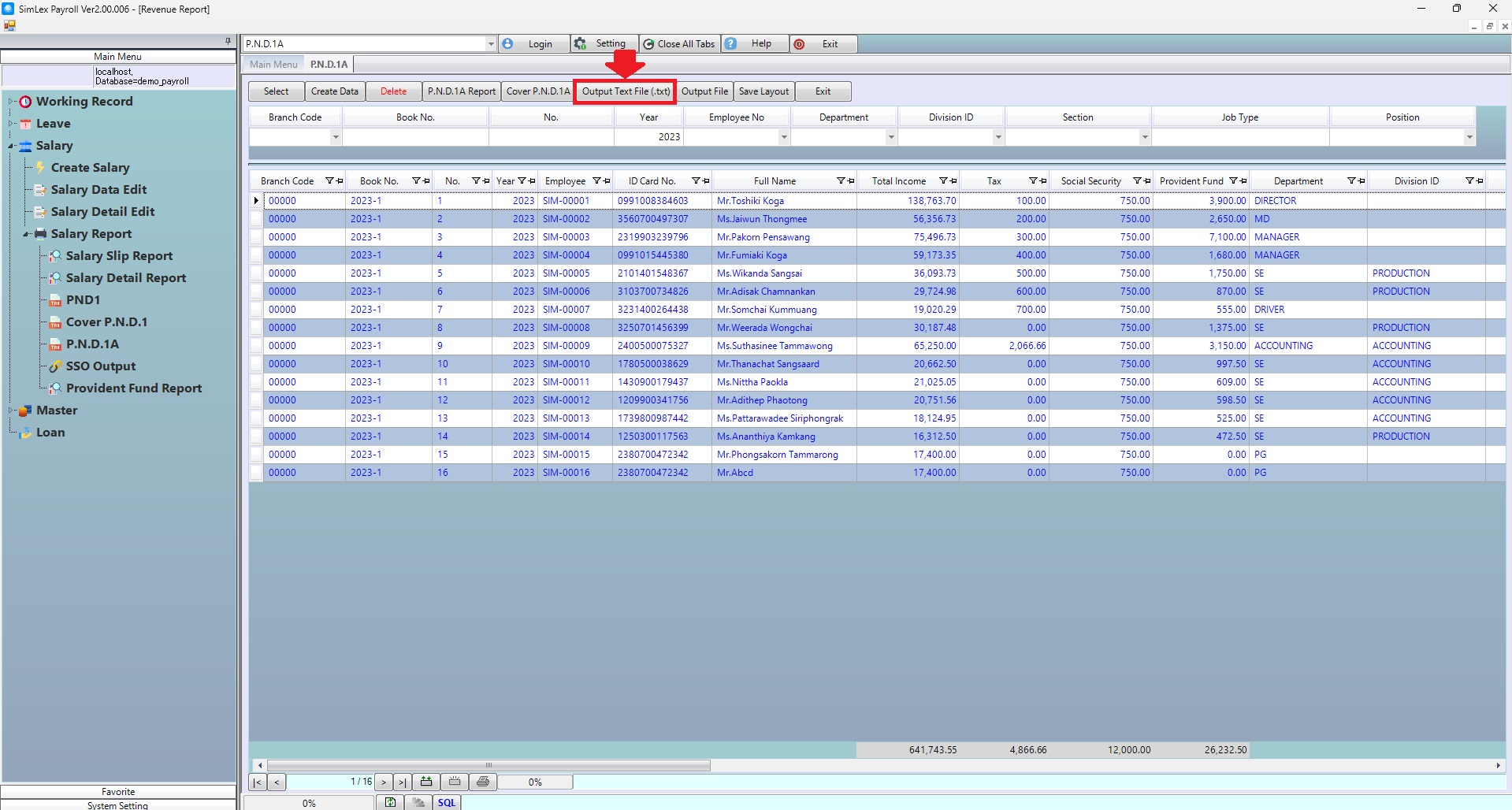
Picture 11 Output text file (.txt).
2. Select the address where you want to save information, to save information.
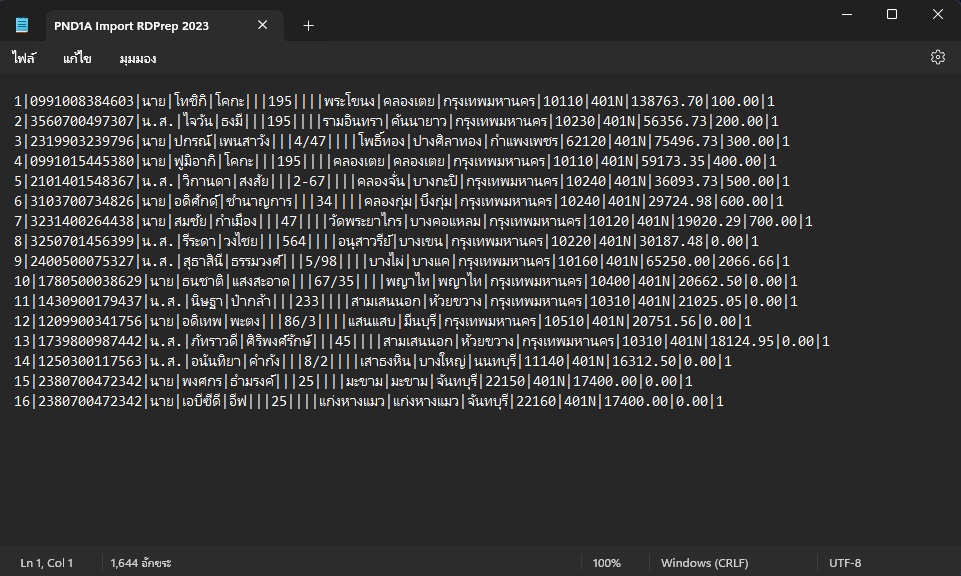
Picture 12 Detail Output text file (.txt).
| Field name main menu | Information detail |
| Branch Code | Select branch code. |
| Book No. | Enter book no. |
| No. | Enter no. |
| Year | The system auto displays information. |
| Employee No | Select employee no. |
| Department | Select department. |
| Division ID | Select division id. |
| Section | Select section. |
| Job Type | Enter job type. |
| Position | Select position. |